
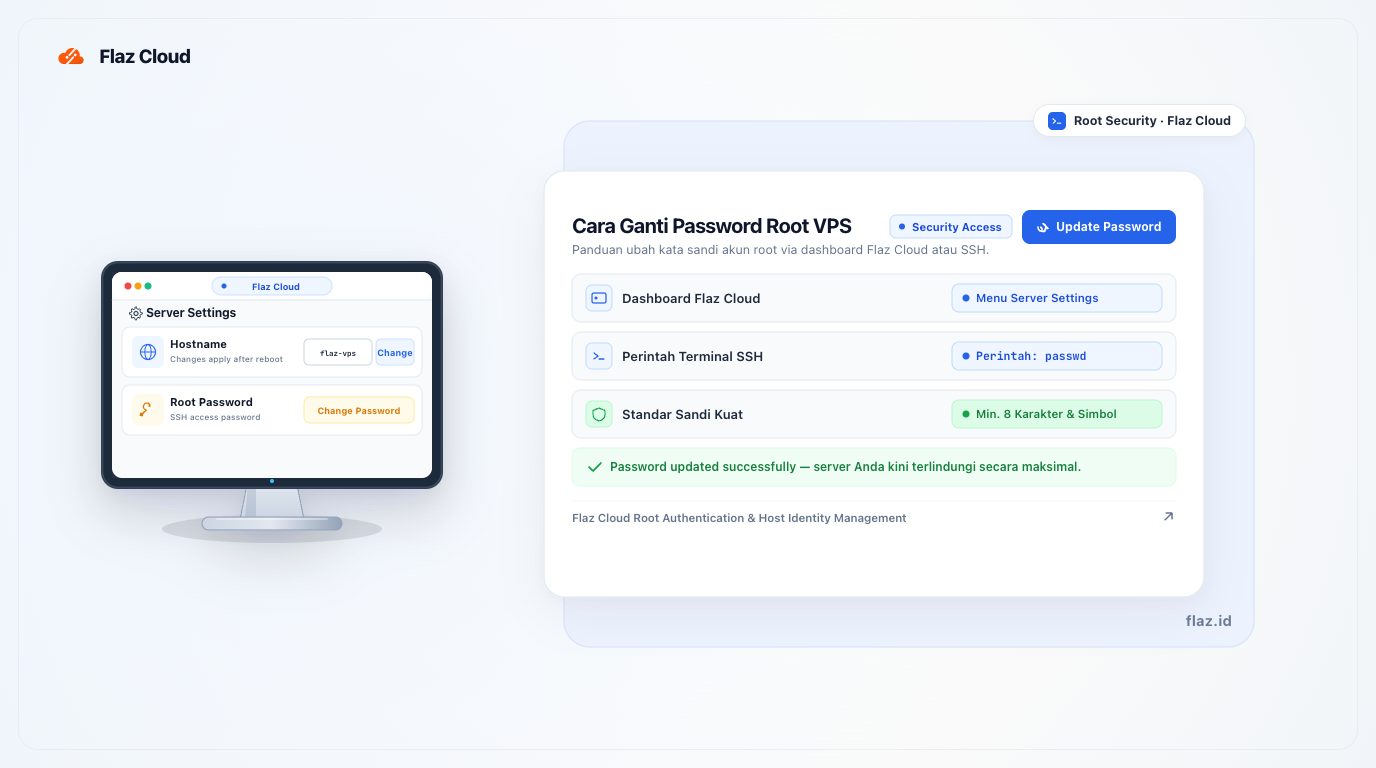
Securing your server starts with a strong password. Learn how to change your VPS root password via SSH commands or the reset menu in the Flaz Cloud dashboard quickly.
Protecting your server security is the most important thing when managing a VPS. Changing your root password regularly or when your server is first activated will help protect your important data from unwanted access by others.
This process is actually very quick and doesn't take long to complete. You only need to log into the server and type one simple command so your new password becomes active immediately.
Changing Password via Flaz Cloud Dashboard
This method is most recommended if you forgot your old password or want a faster way without opening additional applications. You can do it directly from your browser on your phone or desktop.
First, please log in to your Flaz Cloud account and select the Server menu on the left side. Click on the name of the VPS service you want to change the password for. After entering the Overview page, please scroll down until you find the section named Server Settings.
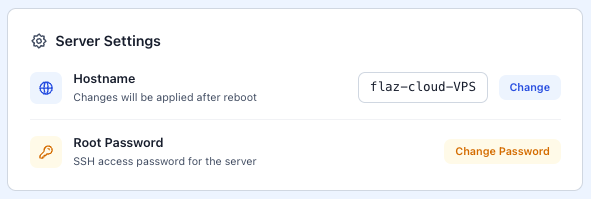
There you will find the Root Password field that you can fill with your new password. Make sure you use a minimum of 8 characters that are difficult to guess. Enter the password again in the confirmation field and click the Change Password button. This setting will be applied to your server within seconds.
Log Into Your Server
The initial step you must do is log into your server via SSH access. You can use your computer's built-in terminal or helper applications like PuTTY. If you don't know how to log in yet, please follow our complete guide on How to Login to VPS via SSH (Windows & Mac/Linux) so you can proceed to the next step smoothly.
It is important for you to have the correct access before changing anything on the server. If you feel you don't have an account to try this service yet, you can follow the steps How to Register a Flaz Cloud Account so your server data appears in the dashboard.
Run the Password Change Command
After you successfully log in and see your server name displayed on the terminal screen, it's time to change the password. Please type the simple command passwd and then press Enter on your keyboard. The server's security feature will immediately respond and ask you to enter a new password.
Make sure your account is properly verified so you can receive important notifications about your account. Please check the steps again at How to Verify Email for Flaz Cloud Account if you feel you haven't received a confirmation email from us.
Enter Your New Password
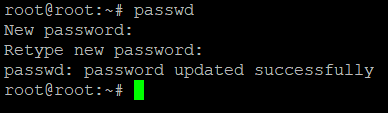
The next step is to type the password you want to use. One thing you need to remember is that when you type on the terminal screen, the cursor will not move and no text will appear at all. This doesn't mean your keyboard is broken, but rather a standard security feature so people around you can't see how many characters you're entering.
Type your new password and then press Enter. After that, the server will ask you to type the same password again as a confirmation. If both passwords you entered match, a notification message will appear saying "password updated successfully" which indicates the process was successful.
Important Notes for Success
One common mistake that often occurs is entering a password that is too short or too easy to guess. We recommend you use a mix of uppercase letters, numbers, and unique symbols so your server is not easily compromised. If you feel you've already typed but still fail, please check whether your Caps Lock button is accidentally active or not.
After the password is changed, make sure you save it in a safe place. If you forget it again someday, you will need to do a reset through the Flaz Cloud dashboard. By regularly changing your password, you've already taken the first step to keep your service safe from external interference.
Was this article helpful?