
Successfully purchased a VPS but confused about how to access it? Follow this complete guide to login to Flaz Cloud server via SSH using CMD, Terminal, or PuTTY easily and quickly.
After you successfully obtain a server at Flaz Cloud, the next step is to access the server to start working. SSH is the main gateway you will use to issue commands or install various applications on your server service.
Don't worry because it's not as difficult as you might think. You only need the server IP address and password that have been sent to your email or can be viewed on your account dashboard page.
Prepare Your Server Data
Before you start, make sure you have obtained the server IP address and root password. If you are using this service for the first time, make sure your account is ready by following How to Register a Flaz Cloud Account so that server data appears on the dashboard. Don't forget to also perform How to Verify Flaz Cloud Account Email so that login data email is not hindered.
How to Login via Windows Without Additional Applications
For Windows 10 users or newer versions, you don't need to download any additional applications. Just use Command Prompt or CMD that is already on your computer.
Please open the Start Menu then type CMD and press Enter. After the black screen appears, you just need to type a simple command. For example, if your server IP address is 2.27.165.999, then you just type ssh root@2.27.165.999 -p 22 then press Enter.
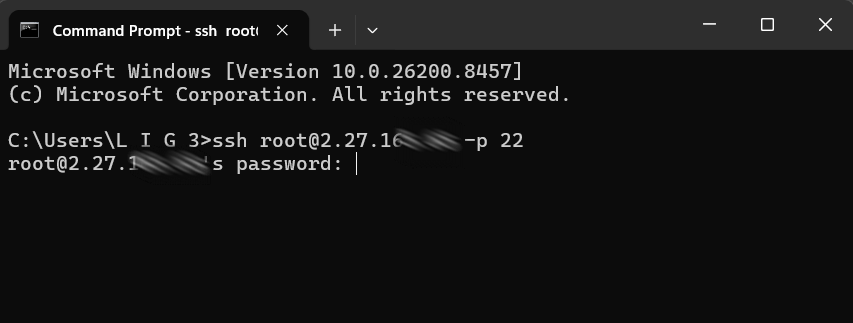
If a question about authenticity appears, just type yes and press Enter. After that, enter your server password. Please note that when typing the password on the black screen, the cursor will not move and text will not appear for security reasons. You just type until finished then press Enter.
How to Login via Mac or Linux

For those using Macbook or Linux, the steps are almost exactly the same. Please open the Terminal application on your computer. Enter the same command as before, which is ssh root@ followed by your server IP address.
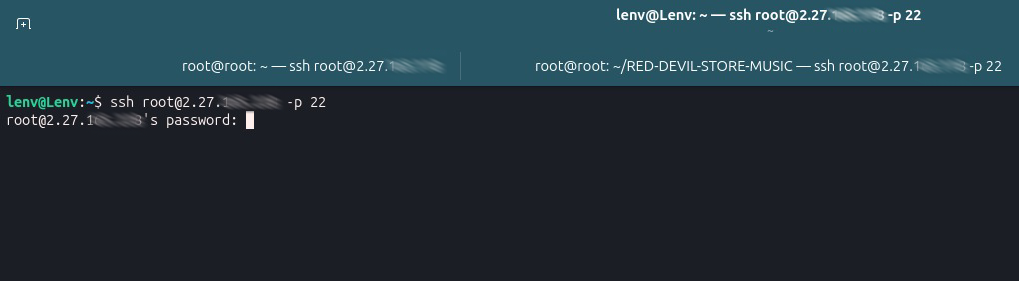
Usually Mac and Linux users prefer this method because it feels faster and doesn't require complicated additional settings. If the connection is successful, the display in Terminal will change to the server hostname name that you previously created on the Flaz Cloud dashboard.
Using PuTTY Application for Windows
If you prefer using an application with a button interface, PuTTY is a very popular choice for a long time. Please download and open the PuTTY application on your computer.
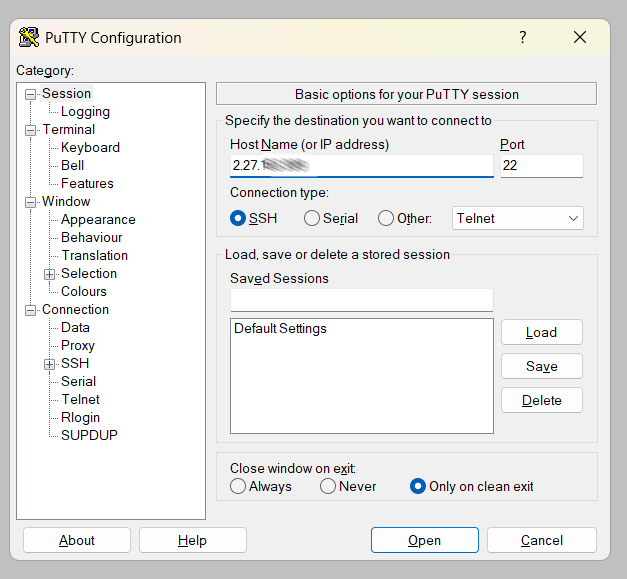
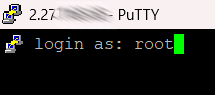
In the Host Name column, enter your server IP address. Make sure the number in the Port section is 22 then click the Open button at the bottom. After the black screen appears, type root in the login as section then enter your server password.
This method is often used by users who want to save multiple server IP addresses at once so they don't have to retype them every day.
Common Mistakes When Logging In
There are several minor obstacles that sometimes cause you to fail to access the server. One of the most common is mistyping the password or having extra spaces copied when you copy-paste from email.
Also make sure your internet connection is running smoothly because this SSH route is quite sensitive to network interference. If a Connection Timeout message appears, try checking again whether the IP address you entered is correct or not. You can also try temporarily disabling the firewall on your computer if you feel there are settings blocking outbound connections.
Was this article helpful?