
Need to restart or shut down your VPS server? Follow this easy guide on how to reboot, shutdown, and force stop your VPS on Flaz Cloud directly from your account dashboard.
Managing a server sometimes requires you to restart or shut down your VPS temporarily so that all applications run correctly. On Flaz Cloud, you have full control to manage your server's power without having to type commands on a black screen.
All these power control buttons can be accessed directly through your account dashboard very easily. So you won't be confused if your server suddenly feels slow or needs a refresh after installing a new application.
1. Access the Power Menu
First, please log in to your Flaz Cloud account. After logging in, select the Server menu on the left side of the screen.
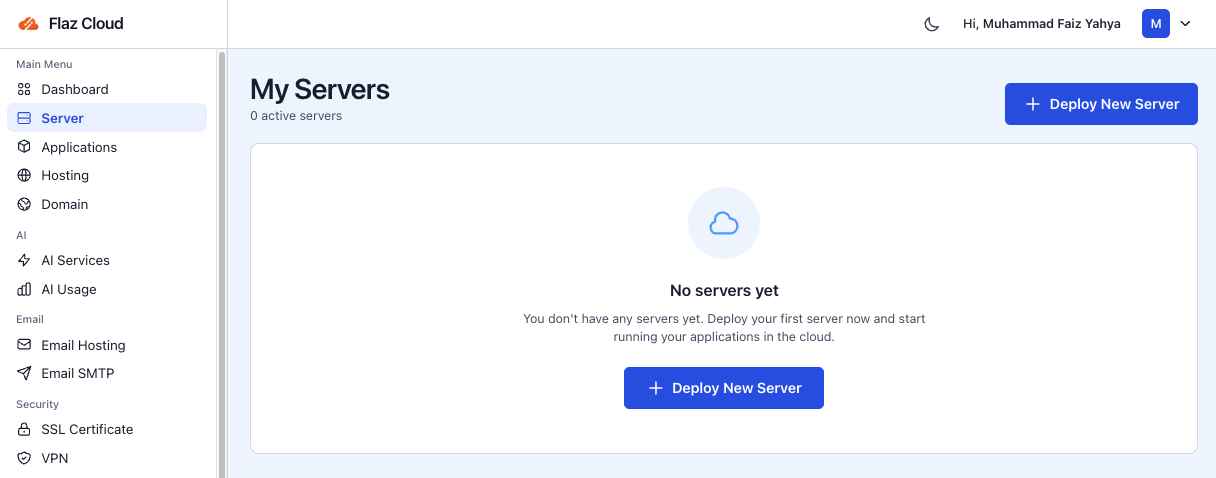
Click on the name of the VPS you purchased to open its settings page. On the main server page, you will see a tab.
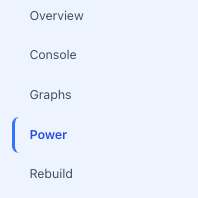
Below it are several menu options such as Console, Graphs, Power, and Rebuild. Please click the Power menu to see your VPS control buttons.
If you just joined and don't have a service yet, you can see the guide How to Register a Flaz Cloud Account to get started.
2. Choose the Type of Power Control
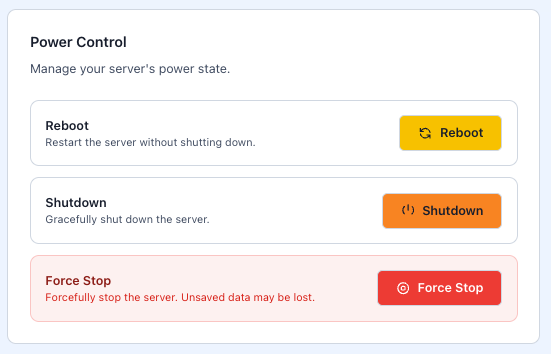
In the Power Control menu, there are three main options you can use depending on your server's current condition.
-
Reboot: Use this button to restart your VPS without actually shutting it down. This is the most common option if you just changed settings inside the server or after performing an update.
-
Shutdown: This option is used to shut down the server gracefully. The VPS will close all running applications first before completely shutting down. This method is the safest so your data doesn't get corrupted.
-
Force Stop: This button will force shut down the server. Use this option only if the server is completely frozen and not responding to the normal Shutdown button. Keep in mind that force shutdown can cause unsaved data to be lost.
3. Turning the Server Back On
If the server is off or after you perform a Shutdown, the button will change its function to Start. Simply click the button and wait a moment until your server status changes back to active or Running.
Usually this startup process only takes less than a minute. You can monitor the status directly from the dashboard page without needing to manually refresh the page. Also make sure your account is set up properly by following How to Verify Your Flaz Cloud Account Email so that every server status report is sent to your email.
Important Notes When Managing Power
It is highly recommended to always use the Reboot or Shutdown option if the server condition is still normal. Force shutting down your VPS too often can cause files inside your server to become corrupted.
If after turning on your server you want to immediately log in and issue commands, you can follow the steps in How to Login to VPS via SSH to ensure all services inside are running properly. If the button doesn't respond at all, don't hesitate to contact our support team via ticket so it can be checked more thoroughly.
Was this article helpful?