
Your WordPress website suddenly shows error 500 or a blank white screen? Learn how to find the cause using WP Debug and how to increase memory limit to get your website back online.
Finding your website suddenly inaccessible with only error codes displayed can certainly make anyone panic. But you don't need to worry excessively because most WordPress issues actually follow the same pattern and you can fix them yourself with a calm head.
Issues like a blank white screen or specific error codes are usually triggered by plugin conflicts or improper server settings. We will help you find the exact problem point so your website can go back online quickly and serve your visitors.
Finding the Cause with WP Debug
Before guessing what's broken, the first thing you should do is check WordPress's secret log. By default, this log is hidden so visitors don't see your website's internal details.
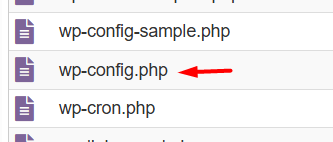
Please log into cPanel following the guide How to Login to cPanel Flaz Cloud then open File Manager. Find the file named wp-config.php in your website's main folder then right-click and select Edit. Find the line containing define('WP_DEBUG', false); and change the word false to true.
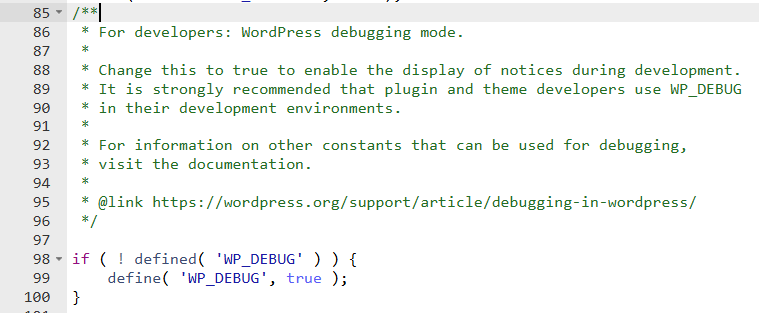
After you save, try opening your website again. Now WordPress will no longer display a blank white screen, but will instead show you exactly which file is having problems. Usually it will show the name of a specific plugin or theme folder that's causing the issue. You can use the guide How to Upload Website Files on Flaz Cloud if you want to manually replace the corrupted file.
Fixing Error 500 (Internal Server Error)
This type of error is the most commonly encountered and is usually related to a file named .htaccess that has become corrupted. This file is responsible for managing how your website address works on the server.
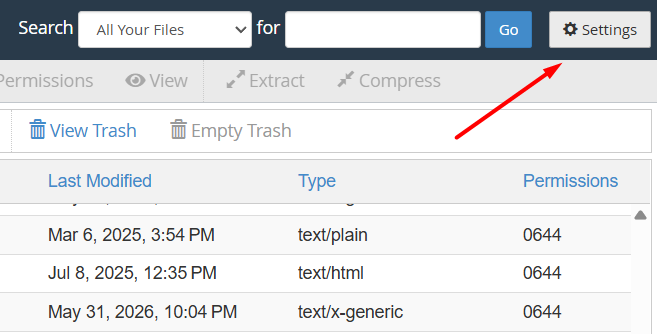
The fix is very simple. Go to File Manager and find the .htaccess file. If you can't find it, click the Settings button in the top right corner and check the Show Hidden Files option.
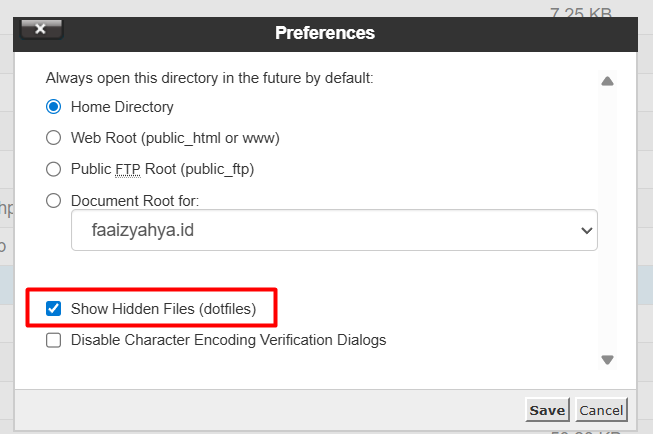
Rename the file to something else like .htaccess_old. Now try opening your website again. If your website opens, then the problem was indeed in that file. You just need to log into your WordPress dashboard and click save in the Permalinks menu so the system automatically creates a new file.
Increasing Insufficient Memory Limit
One cause of blank white screens or error 503 is that your website lacks the power to execute heavy commands. Imagine you're trying to lift a heavy load but your strength is limited—your website will definitely stop working halfway through.
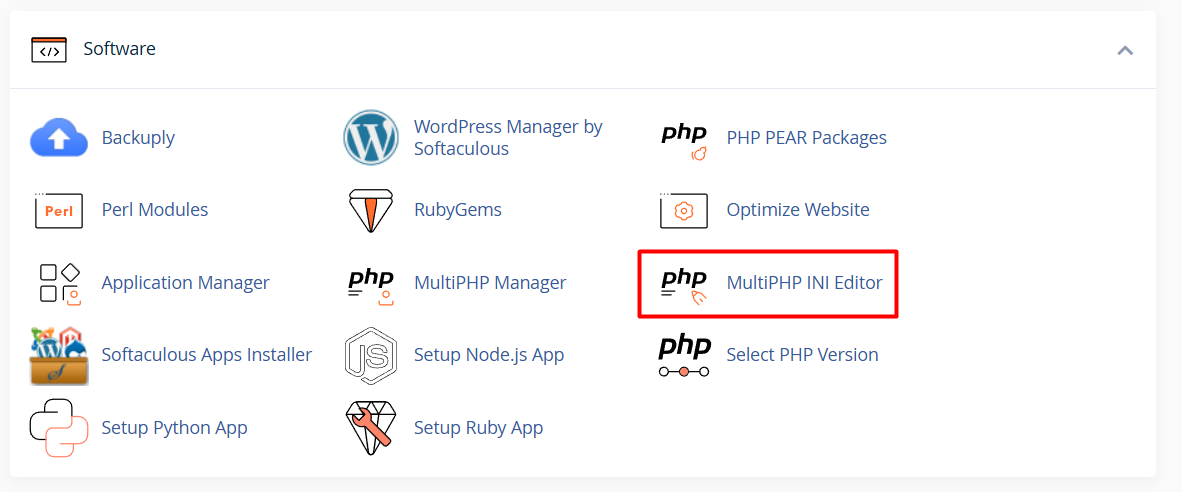
You can increase this power through cPanel in the MultiPHP INI Editor section. Select the problematic domain then find the memory_limit section.
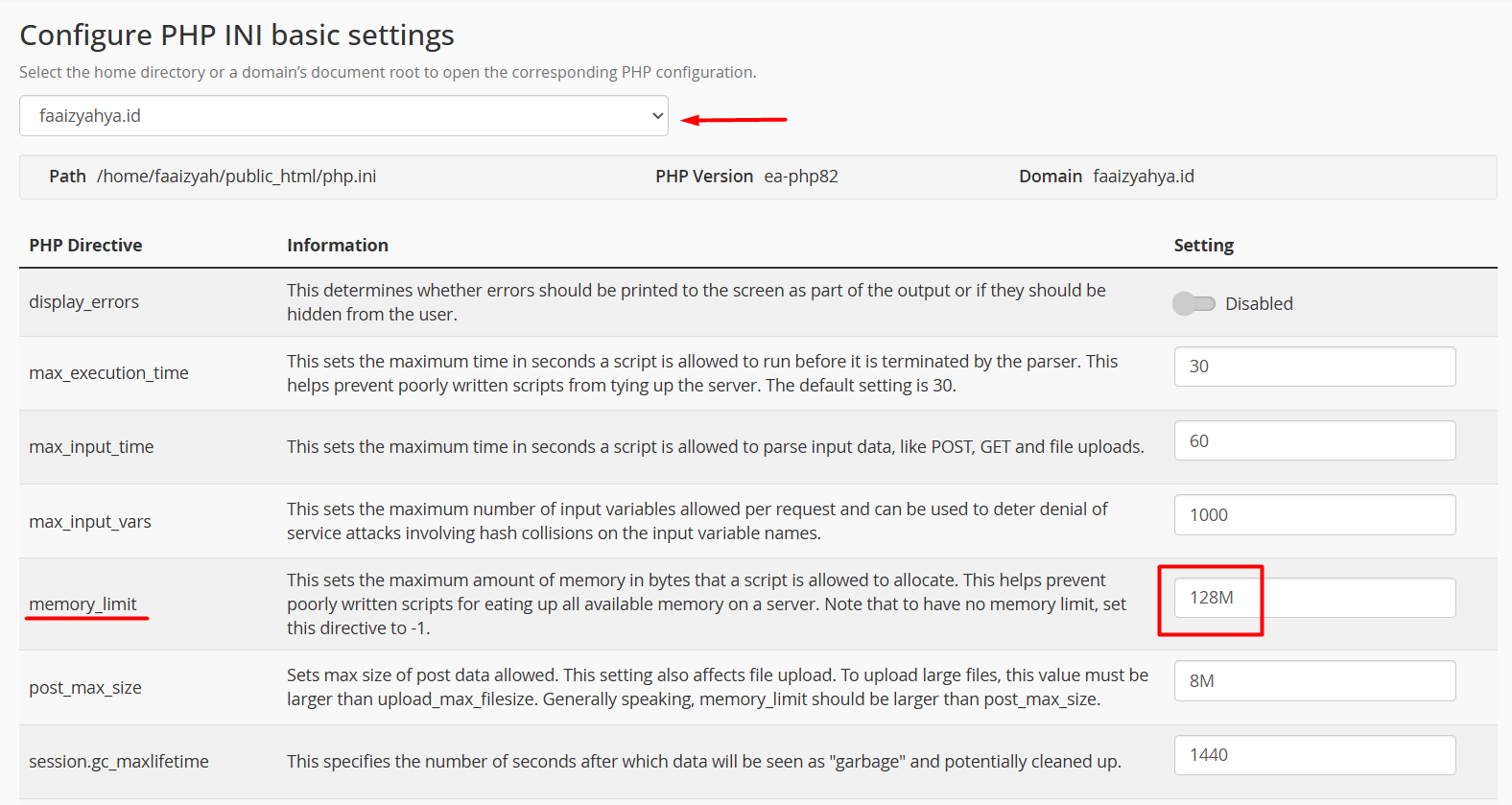
We recommend changing the value to 256M or 512M so your WordPress has more room to work. Don't forget to click the Apply button to save the changes. If you don't yet have our service, please follow the steps How to Register a Flaz Cloud Account to get these complete configuration features.
Disabling Problematic Plugins
If the log from the first step shows a corrupted plugin, you don't have to delete it. Just disable the plugin without needing to access the error-prone WordPress dashboard.
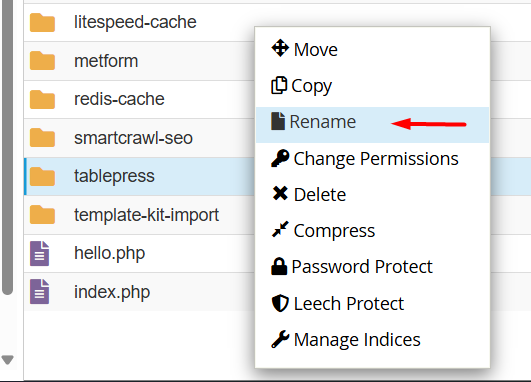
In File Manager, go to the wp-content folder then open the plugins folder. Find the folder with the name of the plugin mentioned in the error log. Right-click on that folder and rename it by adding _disabled at the end. Immediately WordPress will treat that plugin as non-existent and your website should be able to open normally again.
Always make sure your account is properly set up by following the steps How to Verify Your Flaz Cloud Account Email so notifications about any security issues on your website reach you immediately. If you've already tried all the steps above but your website still isn't fixed, don't hesitate to contact our support team through a support ticket so we can check it more thoroughly.
Was this article helpful?