
Moving domains but don't want to lose visitors? Learn how to easily set up 301 domain redirects in cPanel Flaz Cloud so visitors are automatically directed to your new address.
Sometimes you want to automatically redirect visitors from your old website address to a new one. This is very useful if you're changing your domain name or want to redirect a specific page to prevent errors when people open it.
This redirect technique is also great for your website's health in the eyes of search engines because it provides information that the address has moved permanently. In cPanel Flaz Cloud, you can make this configuration in just a short time.
Access the Redirects Menu
First, please log in to your cPanel account. If you forget how, you can refer back to How to Login to cPanel Flaz Cloud as an initial guide.
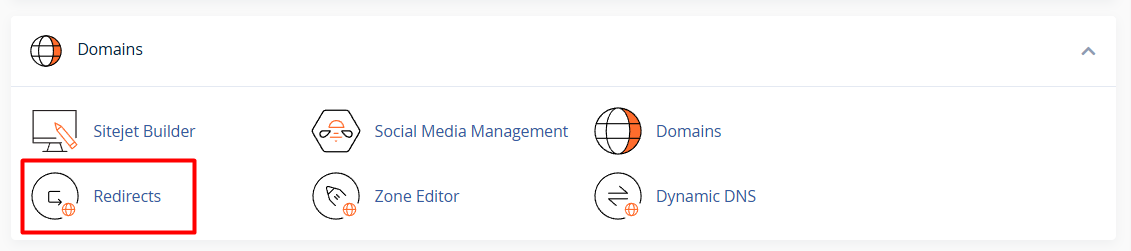
After entering the cPanel main page, find the Domains category and click the menu named Redirects.
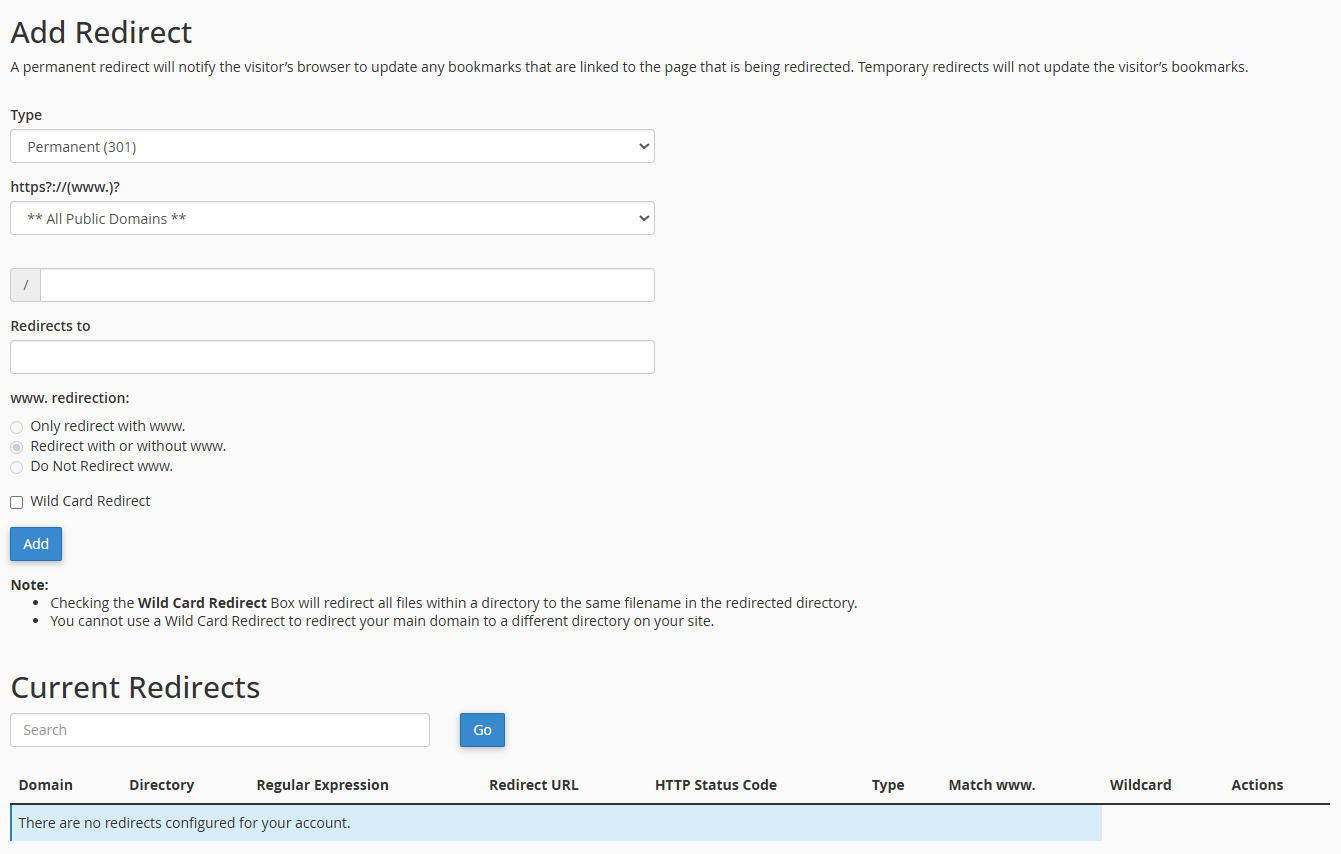
On this page, you will configure where visitors will be redirected from and to. If you're a new user, make sure your account is ready by checking How to Register a Flaz Cloud Account so you can manage your own domain.
Fill in the Redirect Form
On the page that appears, you will be asked to fill in some important information so the system doesn't go in the wrong direction.
-
Type: Choose Permanent (301) if you want to redirect the address permanently. This is the best choice for SEO purposes so your website's ranking doesn't drop in search engines.
-
https?://(www)?: Select the domain name you want to redirect. You can choose one domain only or select "All Public Domains" if you want all of them directed to one place.
-
Redirects to: Enter the complete new destination website address, including the https:// at the beginning. Example: https://domainbaru.com.
-
www redirection: We recommend selecting "Redirect with or without www." so that anyone who types your website name (with or without www) will still be directed to the correct place.
Don't forget to make sure your email is correct by following How to Verify Your Flaz Cloud Account Email so you continue to receive information if any domain settings change.
Save and Check the Results
After all fields are filled in correctly, click the Add button. A green success message will appear notifying you that the redirect has been successfully created. You can also see the list of redirects that already exist at the bottom of the page to make sure nothing is wrong.
Now it's time for you to try it yourself. Open your browser and type the old website address that you just redirected. If the browser immediately changes to display the new website, it means your settings are working perfectly.
When Do You Need to Delete a Redirect?
If at any time you want the old website to return to normal, you just need to go back to the same menu. Find the redirect list at the bottom of the page and click the Delete button on the row you want to remove.
One thing to remember is that sometimes browsers store old data in their memory (cache), so changes may not be immediately visible. If after setting up the redirect the website doesn't change, try clearing your browser history or use incognito mode to check it again. Our team is always ready to assist you if you encounter any issues while trying to redirect your website domain.
Was this article helpful?