
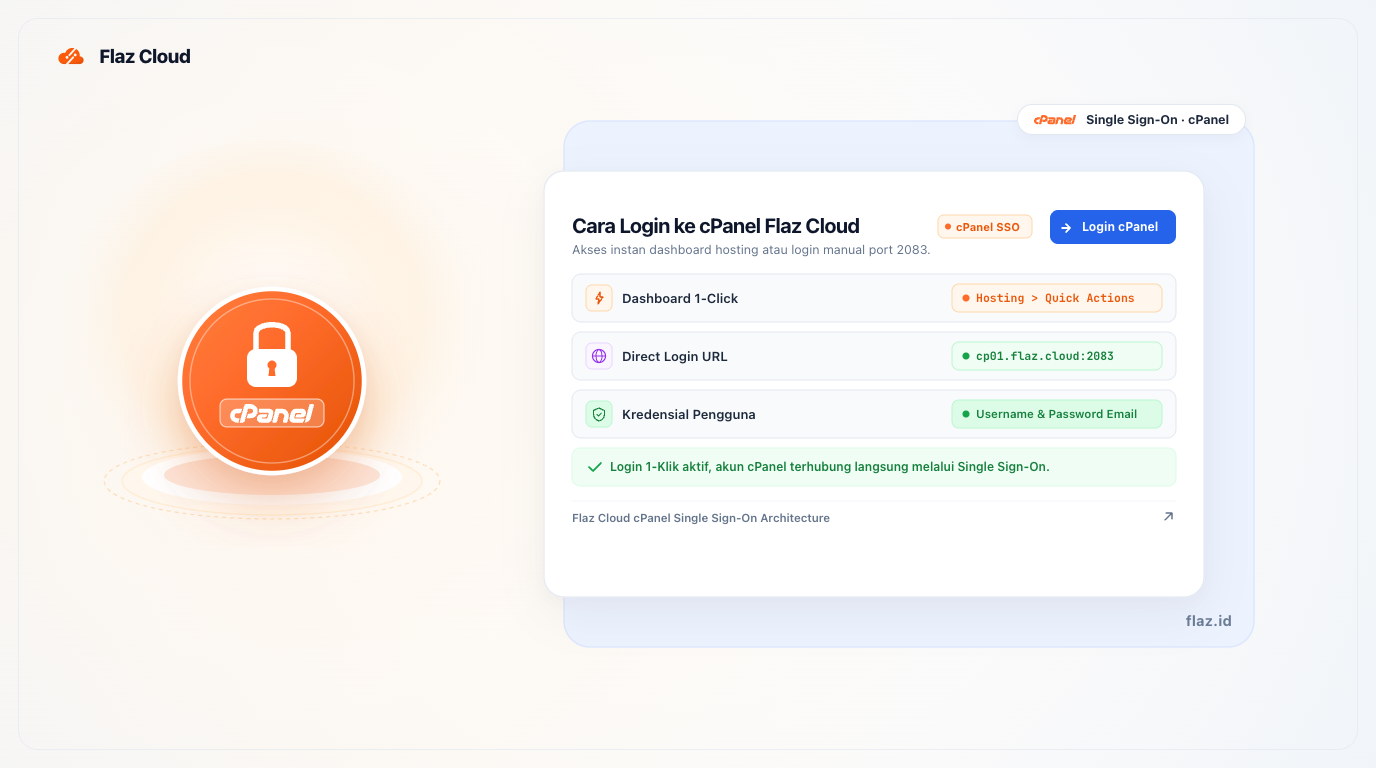
Successfully purchased hosting but confused how to access cPanel? Follow this easy guide to login with one click through the dashboard or manually using details from your email.
Once your hosting service is active, you'll want to start building your website or creating a new email account. At Flaz Cloud, we make it easy for you to access the control panel without having to memorize lots of information.
There are two main ways you can use to login to cPanel: through the one-click feature in our dashboard or manually using the details sent to your email. Let's go through the steps so you can get started today.
Method 1: One-Click Login Through Dashboard
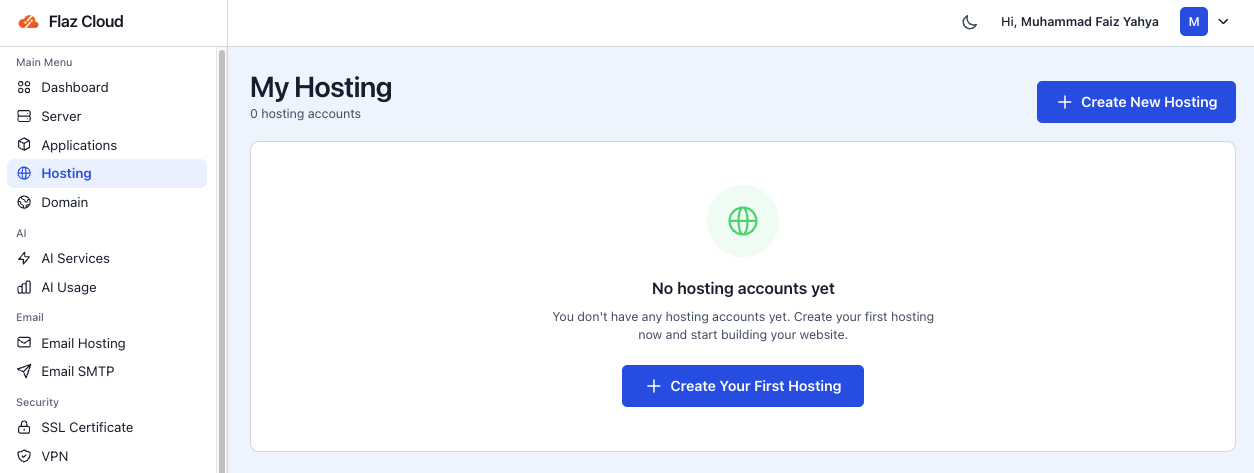
This is the fastest way because you don't need to type your username or password again. Our system will automatically connect you to the cPanel homepage.
-
Open your Flaz Cloud main dashboard.
-
Look at the left sidebar and select the Hosting menu.
-
Click on the name of your hosting service that is already active.
-
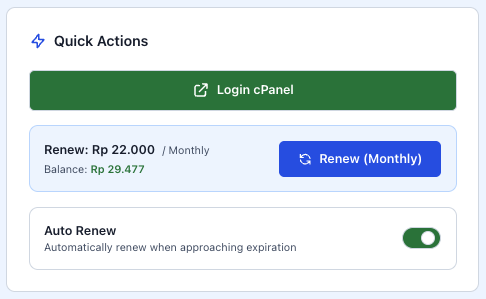
Find the Quick Actions section on that page.
-
Click the Login cPanel button.
After clicking that button, a new window will open and you'll be inside cPanel. If you don't have a service yet or want to try it out, please follow the How to Register a Flaz Cloud Account guide to get started.
Method 2: Manual Login Using Email Details
Every time hosting is successfully created, the system automatically sends an email containing complete login information. This email is very useful if you ever want to access cPanel without going through our main dashboard.
Please look for an email with the subject Hosting Successfully Created in your email inbox. Inside you will find information such as:
-
cPanel Username: Your account's unique username.
-
cPanel Password: Your secret password to login.
-
cPanel URL: The link address to open the login page (for example: https://cp01.flaz.cloud:2083).
Simply click the URL link, then enter the username and password shown. Make sure you don't include spaces when copying and pasting to avoid error messages. To ensure this email notification isn't blocked, make sure your email is correct by checking How to Verify Your Flaz Cloud Account Email.
Important Things to Note
If you experience difficulties when trying to login manually, make sure your internet connection is not blocking port 2083. Some office or school networks sometimes restrict this access for security reasons. The easiest solution is to use the first method, which is to login directly through the Flaz Cloud dashboard, which is more reliable.
Always keep your login details in a safe place and never share them with unknown parties. If you feel your password has been compromised, you can change it anytime through the settings menu inside cPanel or through our dashboard page.
Was this article helpful?