
Want to migrate hosting or backup your website data? Learn how to easily import and export SQL databases through phpMyAdmin in cPanel Flaz Cloud quickly.
Moving website data or saving backup copies is something often done to keep your data safe. One of the easiest tools for this activity is phpMyAdmin which you can find directly in your hosting account.
You don't need to worry about complicated procedures to secure your website data. Just follow the short steps below so all your important data can move safely to its new location.
Access the phpMyAdmin Page
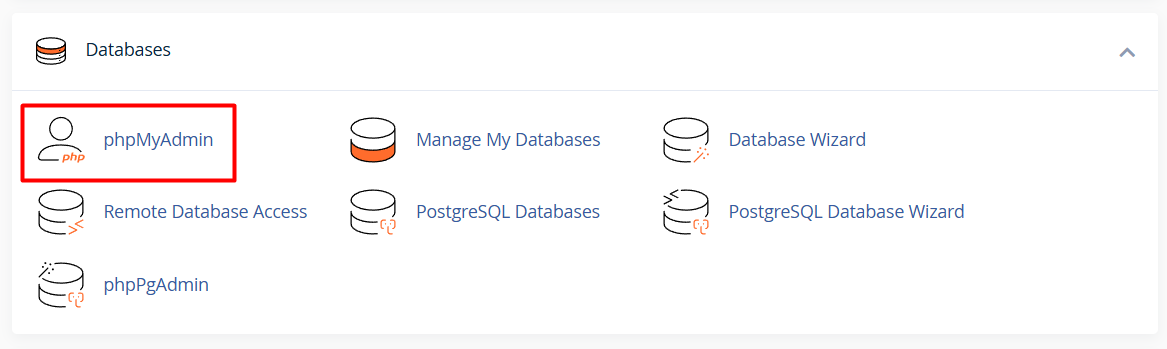
First, please log in to your cPanel account. If you're still confused about how to do it, you can check How to Login to cPanel Flaz Cloud to access the main menu.
Find the section named Databases and click on the phpMyAdmin menu. A new window will open showing a list of databases you have. Before starting, also make sure your account is set up by following How to Register a Flaz Cloud Account so database access is not hindered.
How to Export Database for Backup
We highly recommend saving a backup copy before making major changes to your website. By having a backup file, you can restore your website if something goes wrong later.
-
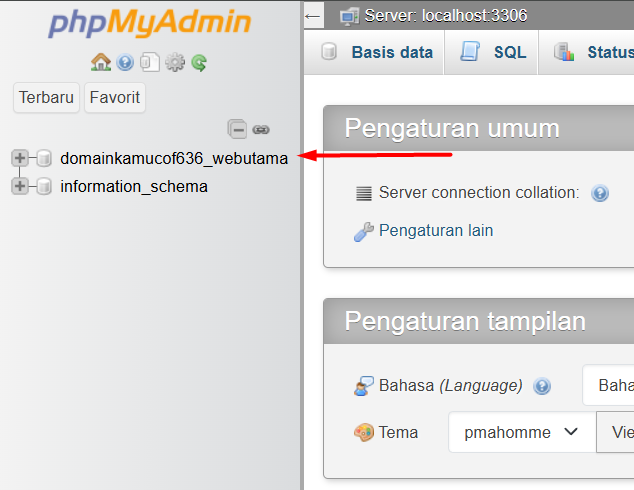
View the database list on the left side of the screen and click on the name of the database you want to extract data from.
-
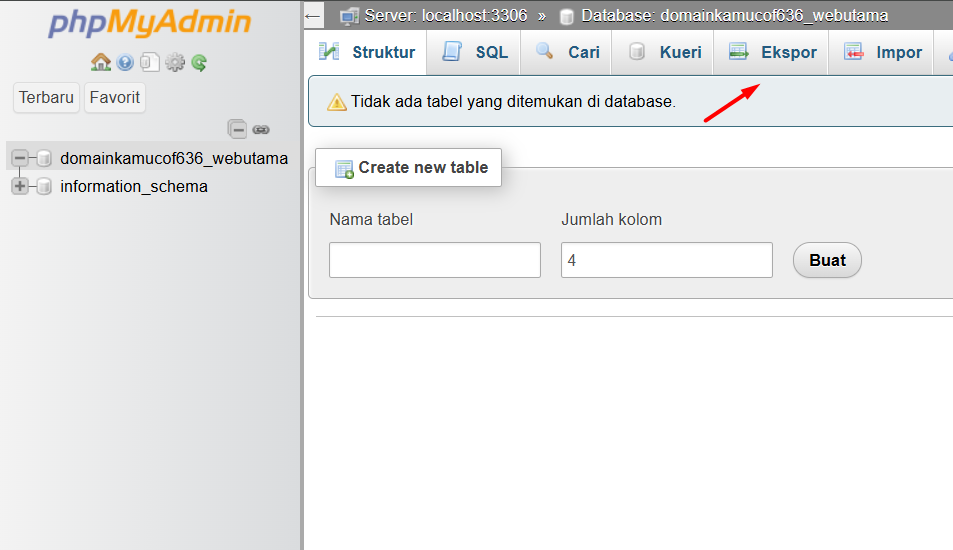
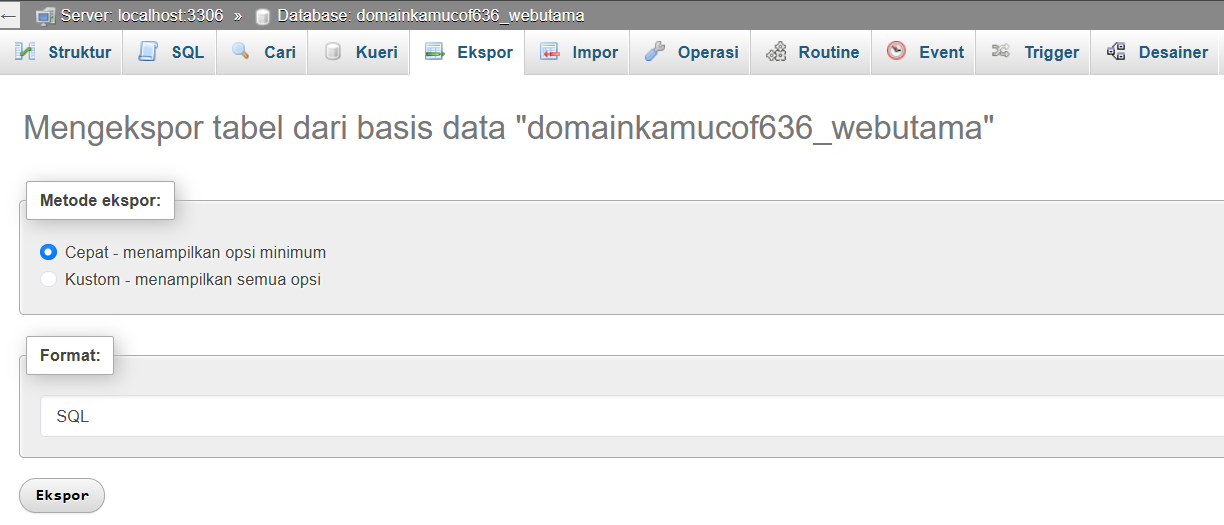
Click the tab labeled Export in the top menu section.
-
Select the Quick method to make the process faster and make sure the selected format is SQL.
-
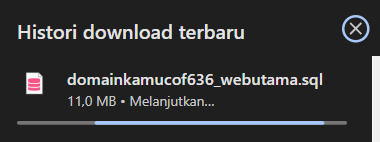
Click the Go or Export button. Your database file will be downloaded to your computer in seconds.
Make sure you have completed How to Verify Flaz Cloud Account Email so that all information about your hosting storage usage remains well monitored.
How to Import Database to New Hosting
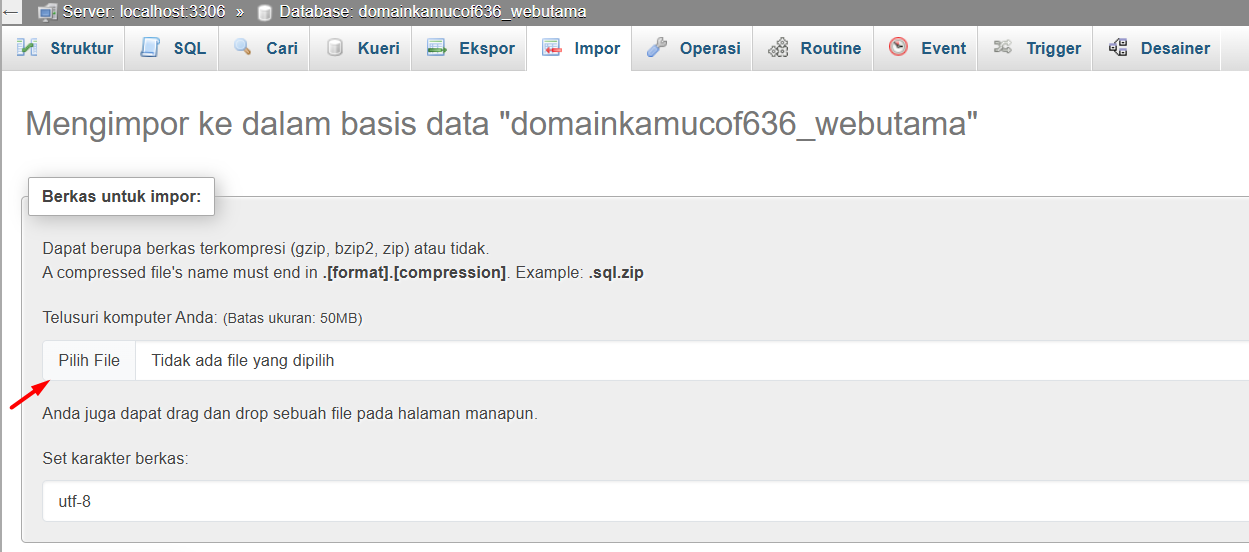
If you want to move data from your local computer or from another hosting to Flaz Cloud, you can use the Import feature. Make sure you have prepared a database file ending in .sql or one that has been compressed in .zip format.
-
Select the destination database name on the left side. If there is no empty database yet, please create one first through the MySQL Database Wizard menu.
-
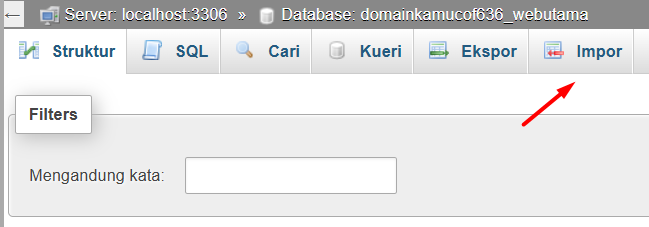
Click the tab labeled Import in the top menu.
-
Click the Choose File button and find the database file on your computer.
-
Scroll down to the bottom of the screen and click the Go or Import button.
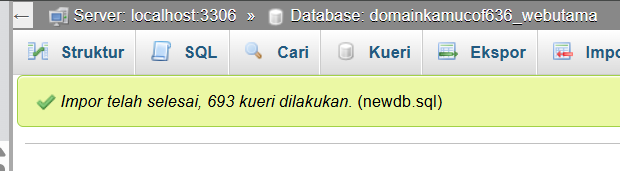
Wait until a green success message appears. If a red error message appears, it's usually because the file you uploaded is too large or there are database name settings that differ from the original file.
Notes for Large File Sizes
Sometimes you encounter difficulties when trying to upload very large data through a browser. If your file size exceeds the specified limit, you can work around it by compressing the file into .zip format first before uploading.
Also make sure there are no other activities running when you send data to avoid failures in the middle of the process. If you feel the data you moved still hasn't appeared, try checking again whether the database name you selected is correct or not. Our team is also always ready to assist you if you need further help in managing your website data.
Was this article helpful?