
Want to get hosting but confused how to start? Check out our complete guide on how to order and login to Flaz Cloud cPanel quickly and securely for your website.
Having easy-to-manage hosting is a fun first step in building a website. At Flaz Cloud, we provide two very popular control panel options: cPanel and DirectAdmin to help you manage your website files and databases without any hassle.
The activation process until you can log into this control panel is made very fast. You only need to follow a few simple steps so your website can go live in just minutes.
Choosing the Right Control Panel
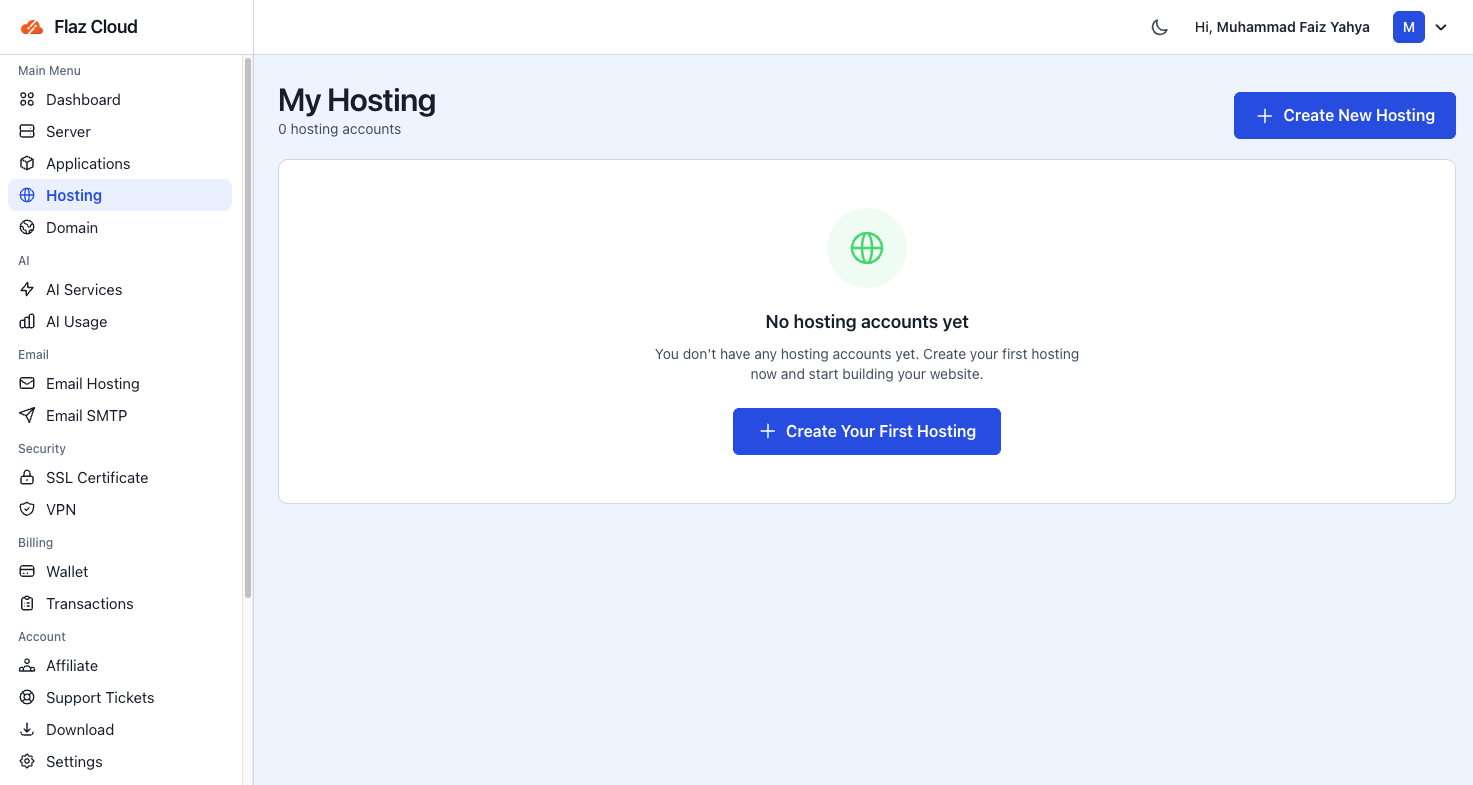
First, please log into your Flaz Cloud account dashboard. Find the Hosting menu on the left sidebar and click the Create Your First Hosting button. On this page you will be asked to choose the type of panel you want to use.
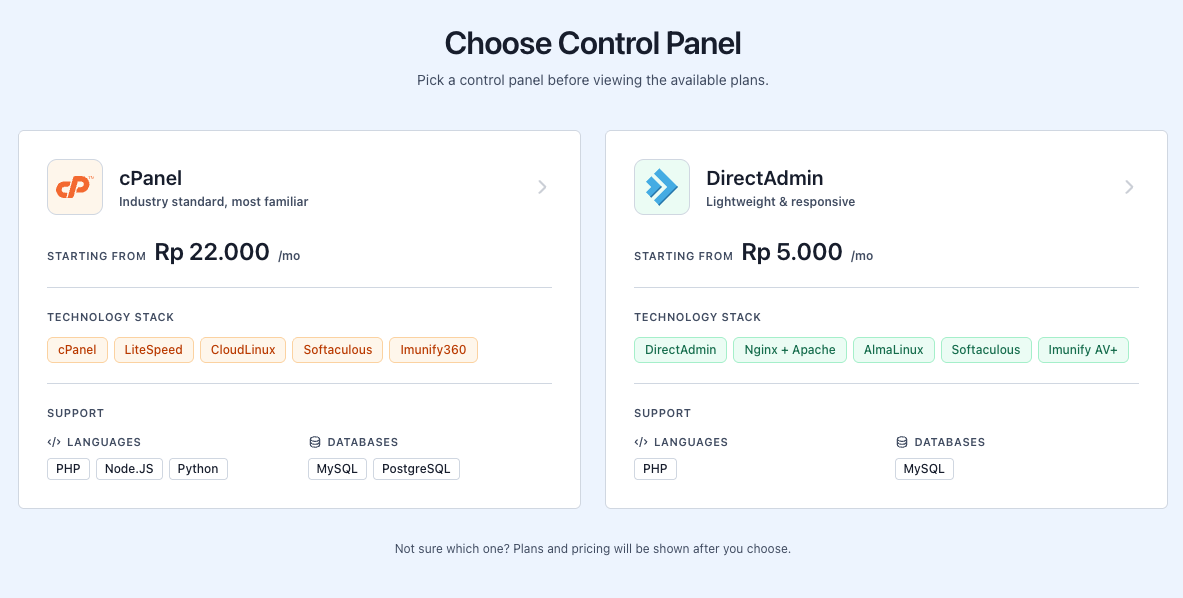
cPanel is the most common choice and very familiar to many people because its features are very comprehensive. Pricing starts from Rp 22,000 per month and comes with great features like LiteSpeed and Imunify360. If you're looking for a cheaper and lighter option, DirectAdmin is available starting from Rp 5,000 per month.
If you're joining for the first time and don't have an account yet, please follow the guide How to Register a Flaz Cloud Account so you can immediately choose your first hosting package.
Determining Package and Subscription Period
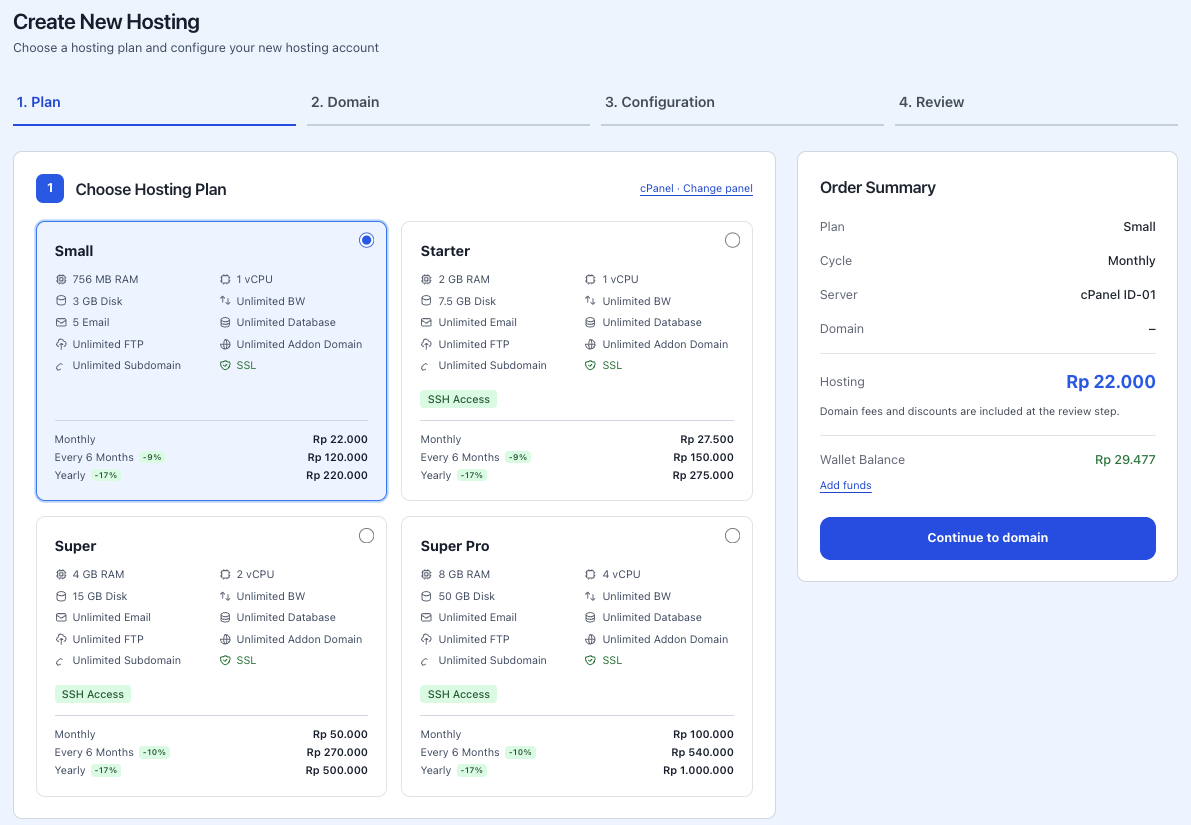
After choosing the panel type, now it's time to determine how much capacity you need. We provide packages ranging from Small to Super Pro for cPanel, as well as Beginner to Enterprise packages for DirectAdmin.
Please select the package that has the right amount of RAM and storage space for your website. You can also choose the payment cycle whether you want to pay monthly or annually to get a bigger discount. Also make sure your account is complete by following How to Verify Your Flaz Cloud Account Email so the hosting activation notification arrives in your email safely.
Setting Up Domain and Password
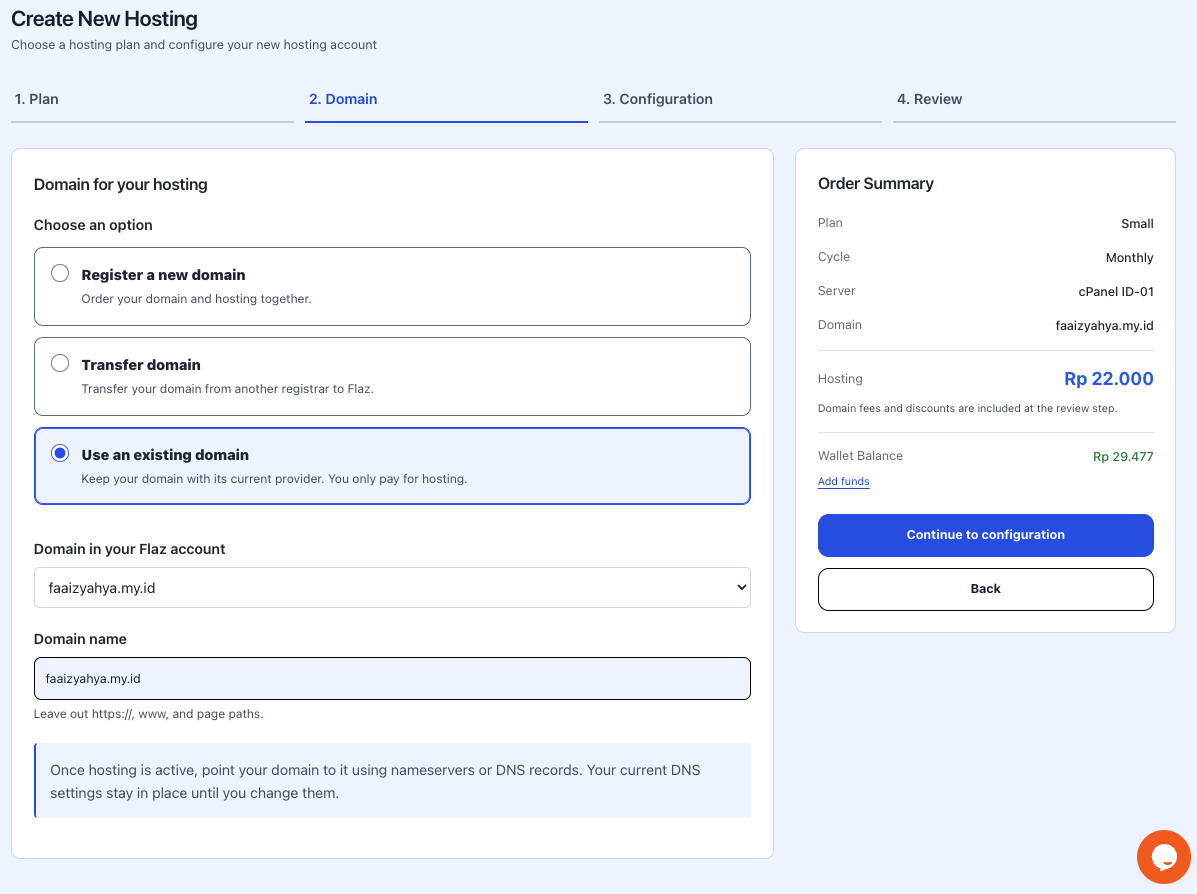
In the configuration section, enter the domain name you want to use for this hosting. Next, create a password to log into your hosting panel.
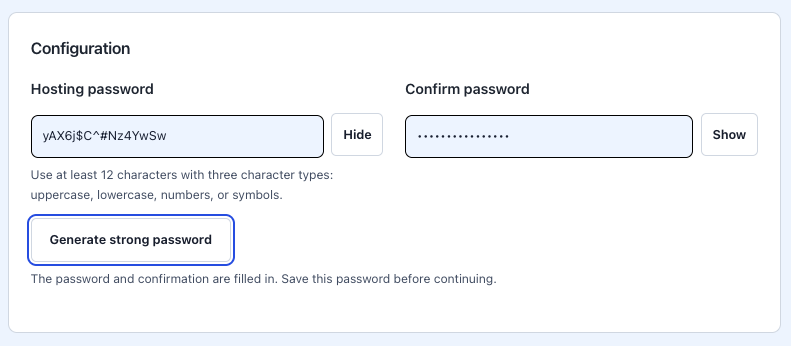
Make sure the password has a minimum of 12 characters consisting of uppercase letters, lowercase letters, numbers, and unique symbols so it's not easy to guess by others.
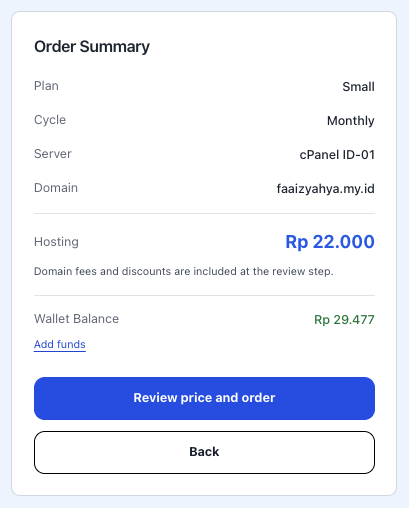
Check the Order Summary section on the right side of the screen to make sure all your choices are correct. If you have a voucher code, please enter it to get an additional discount. If your wallet balance is sufficient, click the Create Hosting button to start the setup process.
Activation Process and How to Log Into the Panel
After you click the create button, the system will immediately start preparing your hosting. You will see a blue indicator showing the provisioning process is running. Usually this process only takes 1 to 2 minutes.
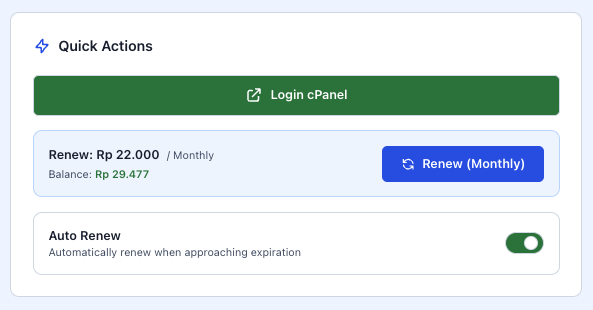
Once the status changes to green and shows Active, your hosting is ready to use. To log into cPanel or DirectAdmin, you can click the Quick Action button on the hosting detail page in your Flaz Cloud dashboard. You can also log in through your domain address with a special port according to the instructions sent to your email.
If you encounter any issues during the activation process, make sure to check whether the domain you're using is already registered or not. Our support team is also always ready to assist you if you have any further questions about your website's initial setup.
Was this article helpful?