
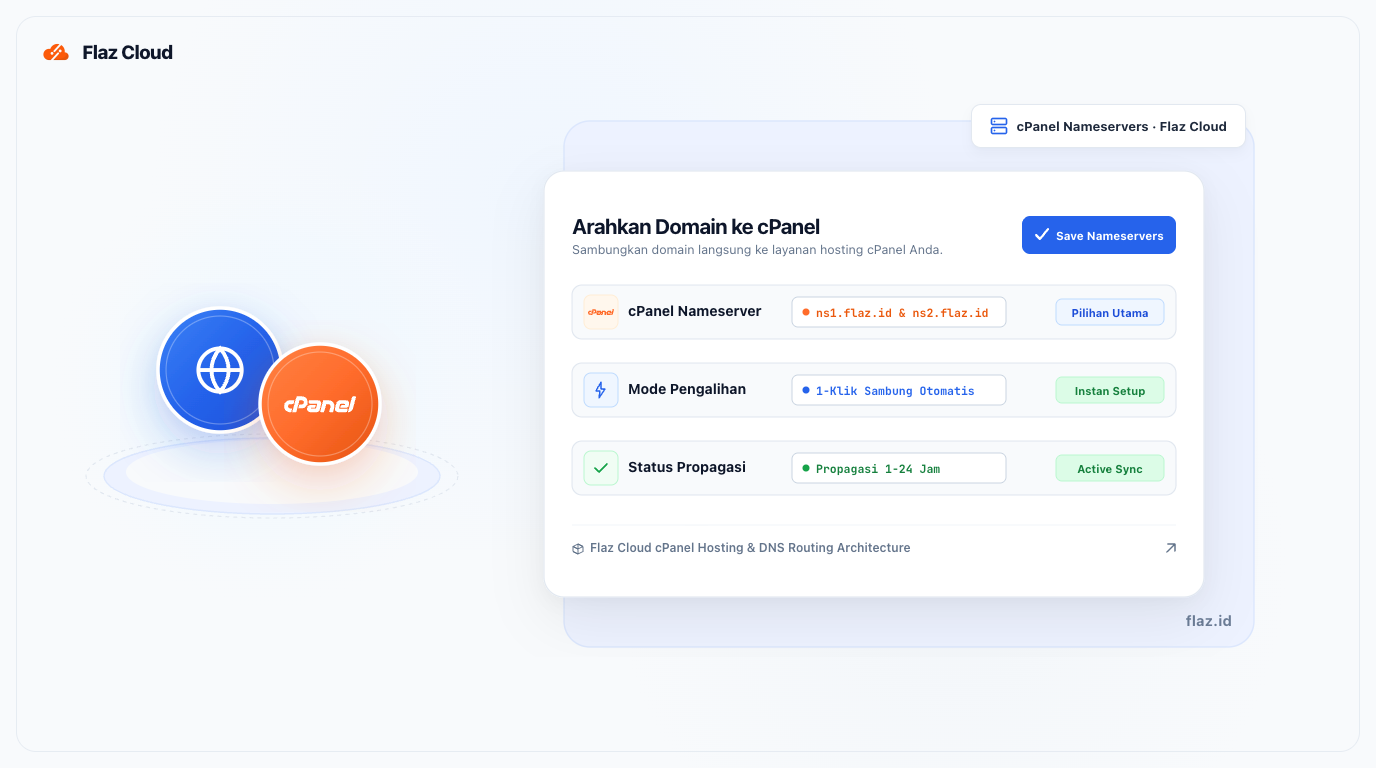
Just bought a domain and hosting but your website hasn't appeared yet? Learn the easy way to connect both using Flaz Cloud's official nameservers so your website goes live immediately.
After you purchase hosting and domain services, the next most important step is to connect both of them. Without this step, your domain won't know where your website files are stored, so your website won't be accessible to visitors.
The process of pointing your domain to hosting is done by configuring the Nameserver section. At Flaz Cloud, the process is made very instant and you only need to enter two lines of server addresses for everything to run smoothly.
Step 1 Enter the Domain Menu
First, please login to your Flaz Cloud dashboard. On the left sidebar menu, click the Domain menu and select the domain name you want to connect to cPanel hosting.
If you just joined and don't have an account yet, you can follow How to Register a Flaz Cloud Account to get started. Also make sure your account is complete by following How to Verify Flaz Cloud Account Email so that every domain setting change is monitored securely.
Step 2 Find the Nameservers Section
After the domain detail page opens, scroll your screen downward until you find the box labeled Nameservers. In this section, there are three main options available to point your domain. To directly connect your domain to cPanel hosting service at Flaz Cloud, you can select the Flaz Hosting Name Servers option.
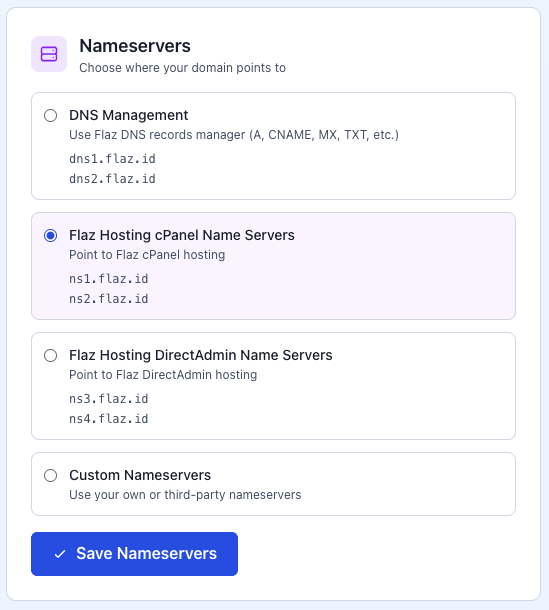
This option will automatically fill in the required nameserver addresses without you having to type them manually.
Step 3 Save Settings
After the nameserver addresses are filled in correctly, click the blue button labeled Save Nameservers. A notification will appear indicating that your changes have been successfully saved by the system.

If you also want to manage website files, you can see the guide How to Login to Flaz Cloud cPanel so you can start uploading your website data after the domain is pointed.
Note About Waiting Period (Propagation)
One thing you need to understand is that this change doesn't always take effect immediately. There is a waiting period called DNS propagation, where internet servers around the world need to update your domain address records.
Usually this process takes between 1 to 24 hours. During this time, your website may sometimes be accessible and sometimes not. You can check the status of your domain distribution through third-party sites like DNSChecker to see if your domain is pointing to our server evenly.
If after 24 hours your website is still not accessible or you feel unsure about the nameserver addresses used, please contact the Flaz Cloud support team so we can help perform further checks on your domain.
Was this article helpful?