
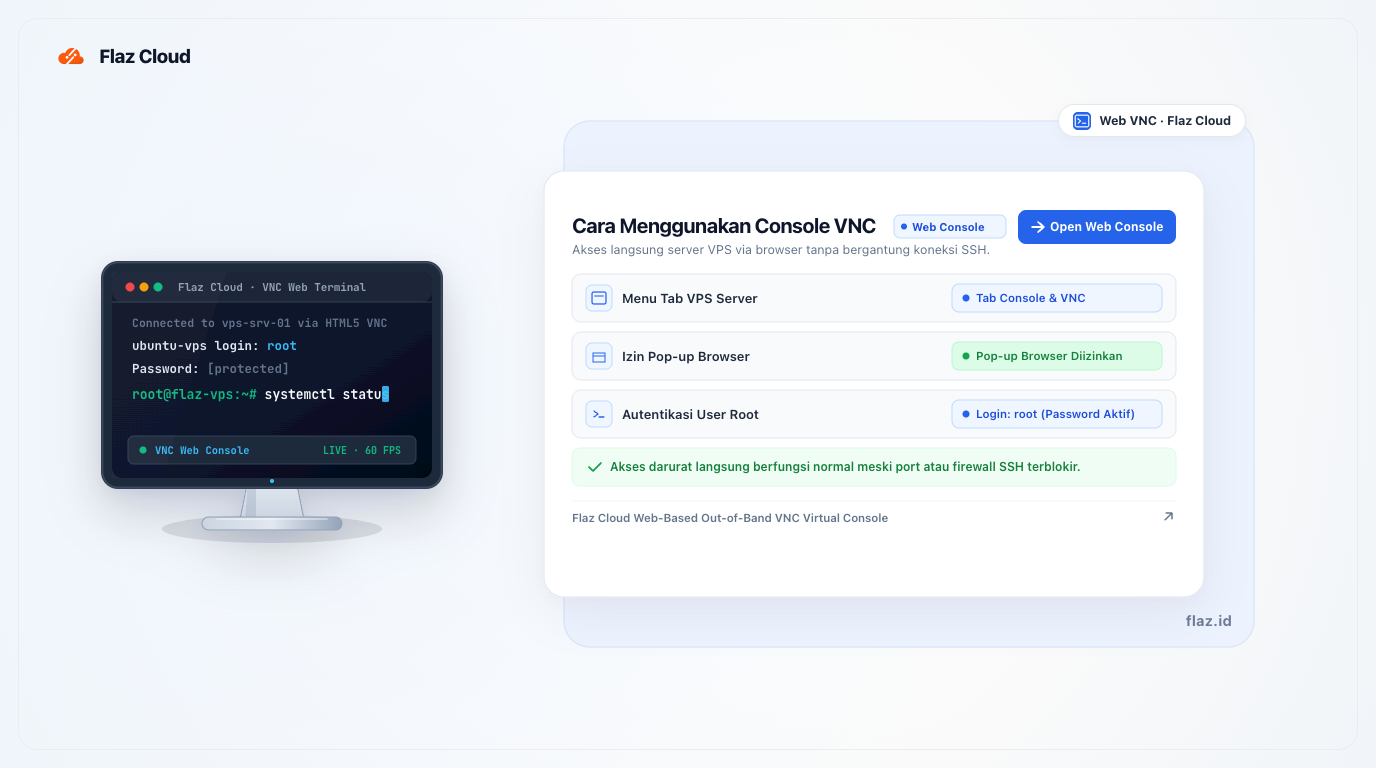
Can't access SSH? Don't panic. Learn how to use Flaz Cloud's web-based VNC Console to access your server directly from your browser.
Have you ever experienced a situation where your server cannot be accessed at all through SSH? This often happens if you accidentally change firewall settings or encounter network issues on your server. At Flaz Cloud, you don't need to panic because we provide a VNC Console feature that allows you to control your server directly from your browser without any additional applications.
This feature works like a monitor screen connected directly to your VPS server. So, no matter what happens to your SSH connection, you can still log in and fix your server as if you were sitting in front of that physical computer.
Accessing the Server Console Menu
First, log in to your Flaz Cloud account dashboard. Find the Server menu on the left sidebar and select the name of the VPS service you want to manage. After the server details page opens, you will see several main menu options at the top.
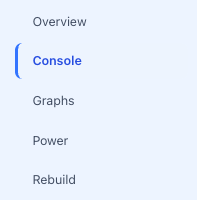
Click on the Console tab located right next to the Overview menu. On this page you will see two main sections: SSH Connection for plain text access and VNC Console for web-based screen access. If you don't have an account yet, you can follow the steps in How to Register a Flaz Cloud Account to start trying this feature.
Running the Web Console
After being on the Console tab, scroll your screen downward until you find the VNC Console section. There is a blue button labeled Open Web Console that you can click to open a new window.
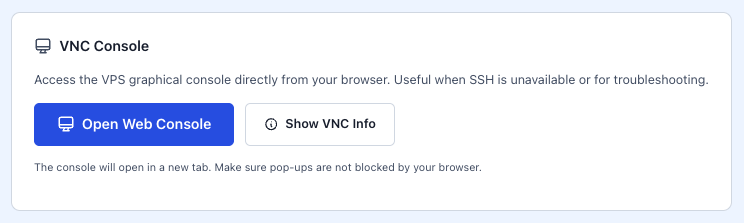
Before clicking that button, make sure your browser is not blocking pop-up windows.
If no new page appears, check the warning sign in your browser's address bar and choose to allow pop-ups from the Flaz Cloud site. It's also important to make sure your account is verified by following How to Verify Your Flaz Cloud Account Email so that access to our advanced features is not hindered.
How to Login via VNC
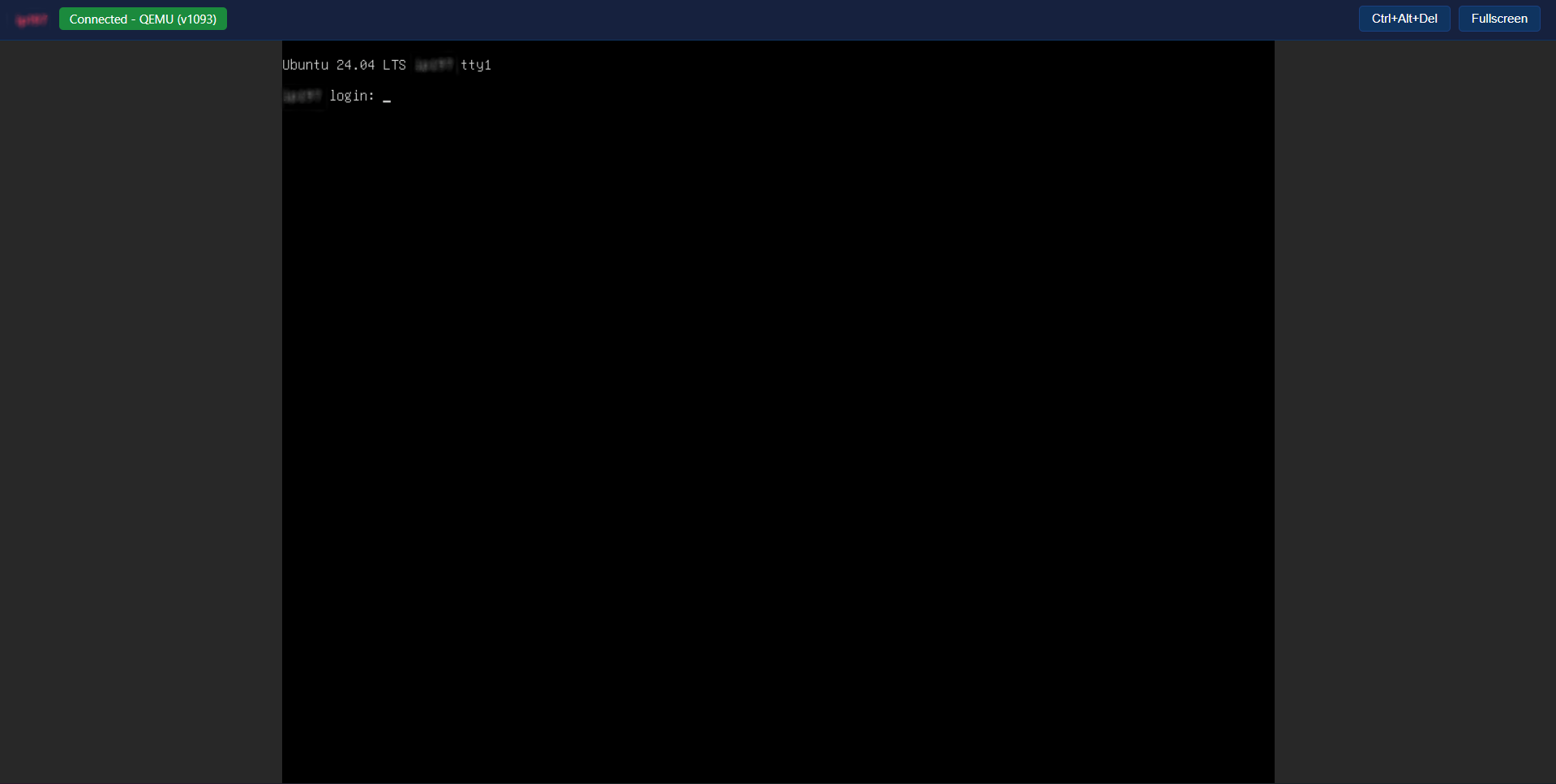
Once the VNC window opens, you will see a black screen asking for a username. Please type root and then press Enter. After that, enter the server password that you created when you first placed your order.
One thing you need to pay attention to is that when you type the password on this VNC screen, the cursor will not move and the letters you type will not be visible at all. This is a common security feature on Linux servers. Just type your password until it's complete and then press Enter with confidence. If the password is correct, you will immediately log into the system and can start fixing the problematic settings.
Other Uses of VNC Console
Besides fixing configuration errors, this VNC Console is very helpful when you want to see the server boot process from the beginning. You can see if there are any error messages that appear when the server is first turned on. This feature is also perfect to use if you are manually installing an operating system or when you are performing data recovery that requires full screen access.
If you find it difficult to type a long password, you can use the Show VNC Info button to view your access details first. Always make sure you close the VNC window after you're done using it to keep your server security in good condition.
Was this article helpful?