
Server messy or want to change operating system? Learn how to easily reinstall OS on VPS at Flaz Cloud so your server is clean and fresh again.
Sometimes we make mistakes while tinkering with the server or maybe you just want to start a new project with a different operating system. Doing a reinstall or Rebuild is the fastest way to make your server clean and fresh again without having to purchase a new service.
However, keep in mind that this process will permanently delete all data on your server. So make sure you have saved important data to your personal computer before following the steps below.
1. Make Sure Server is Powered Off (Shutdown)
One thing you must do before reinstalling is to shut down the server first. Our system will not allow the reinstall process if the server status is still running.
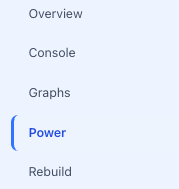
Please log in to the Flaz Cloud dashboard then select the Server menu. Click on the VPS you want to manage then select the Power menu.
There you will find the Shutdown button.
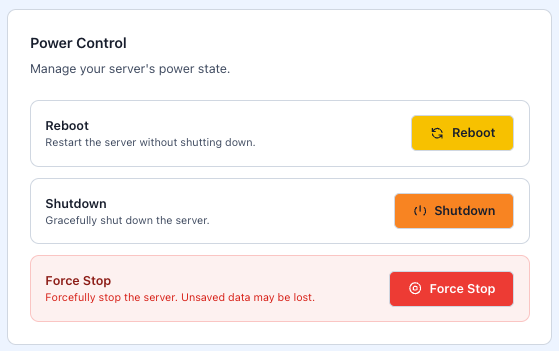
Click the button and wait until a green message appears stating the server has been successfully shut down. If you are a new user, make sure your account is ready by checking How to Register a Flaz Cloud Account.
2. Enter the Rebuild Menu
After the server is completely shut down, now pay attention to the menu row above your server settings section. Next to the Power menu, there is a menu called Rebuild. Click that menu to open the reinstall page.
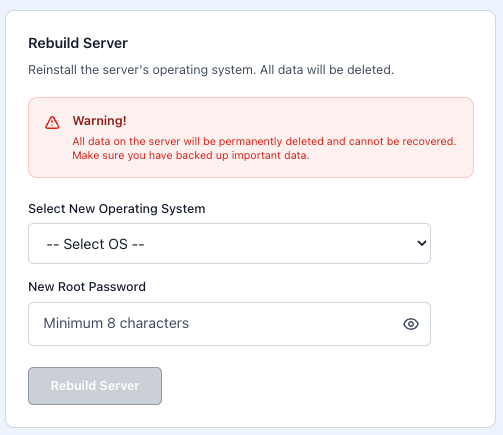
This page will display a strong warning that all data will be lost. This is where the system will delete all your old folders and databases to be replaced with a fresh operating system. Also make sure your email is active by following How to Verify Flaz Cloud Account Email so you get notifications when this process is complete.
3. Select New Operating System
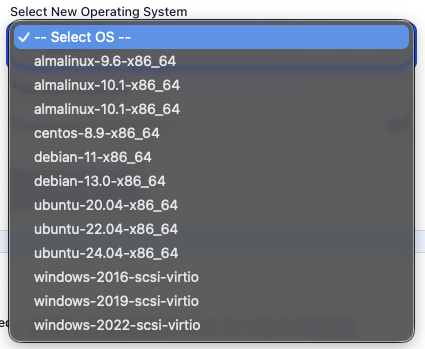
In the Select New Operating System section, click the available menu options. You can choose the old operating system again or try a new one. We provide many options such as:
-
Ubuntu (versions 20.04 to 24.04)
-
Debian (versions 11 to 13)
-
CentOS and AlmaLinux
-
Windows Server (2016, 2019, 2022)
Choose one that best suits your current application needs.
4. Enter New Root Password
Don't forget to fill in the New Root Password section. You must create a new password with a minimum of 8 characters. You can use the same password as before or create a new one for better security. Use a combination of numbers and letters so it's not easy to guess by others.
5. Run the Rebuild Process
If all selections are final, click the red button labeled Rebuild Server. The system will immediately start deleting old data and installing your chosen operating system. This process usually takes about 2 to 5 minutes depending on the type of operating system you choose.
After the process is complete, your server will automatically power back on. You can immediately try logging into the server using the same IP address but with the new password you just created. If you forget how to log into the server after reinstalling, please read How to Login to VPS via SSH for complete instructions.
It is highly recommended not to reinstall frequently in very close time periods to maintain good server storage performance. Use this feature only when you really want to start from scratch or when your server experiences severe system damage.
Was this article helpful?