 Flaz
FlazReset Password Flaz Cloud Account
Forgot your Flaz Cloud account password? Follow our complete guide to request a reset link via email and create a new password so you can log back in.
Forgetting your password is common and can be frustrating, especially when you need to manage your server right away. But don't worry because recovering your account access is very easy and only takes a few minutes to get back into the dashboard.
Make sure you still have access to the registered email because the recovery link will be sent there. If you're a new user and don't know how to secure your account from the start, you can read the guide How to Verify Flaz Cloud Account Email first so the system communication process runs smoothly.
Access the Forgot Password Page
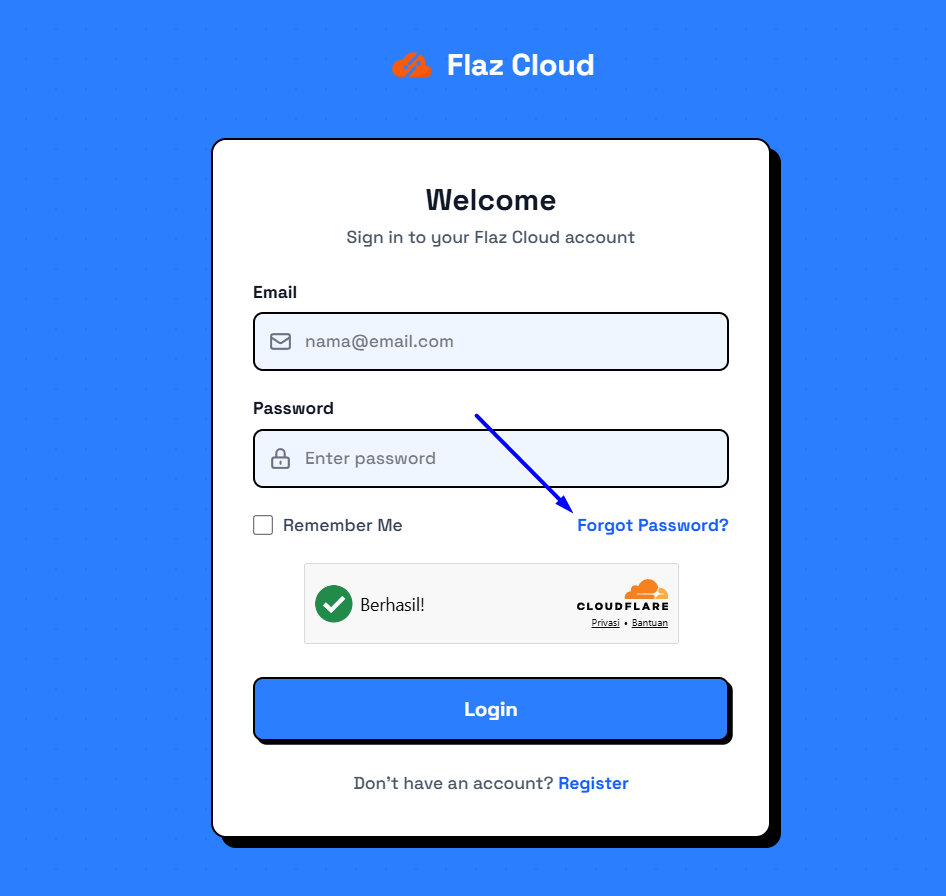
Please open the Flaz Cloud login page as usual. At the bottom of the data entry box, you will see the text Forgot Password? which you can click. Click on this text to go to the account recovery page.
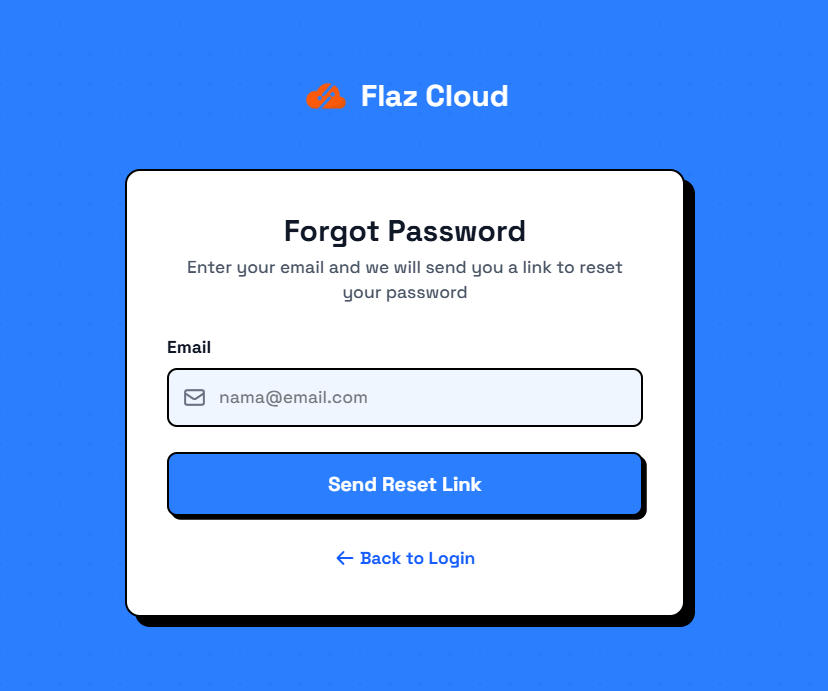
On the page that appears, you will be asked to enter your email address. Type the email you used when you first registered for our service. After making sure there are no typos, click the Send Reset Link button. The system will send a message that the reset link has been sent if that email is indeed registered in our database. If you feel you have never created an account, please follow the steps How to Register a Flaz Cloud Account to get started.
Check Your Email Inbox
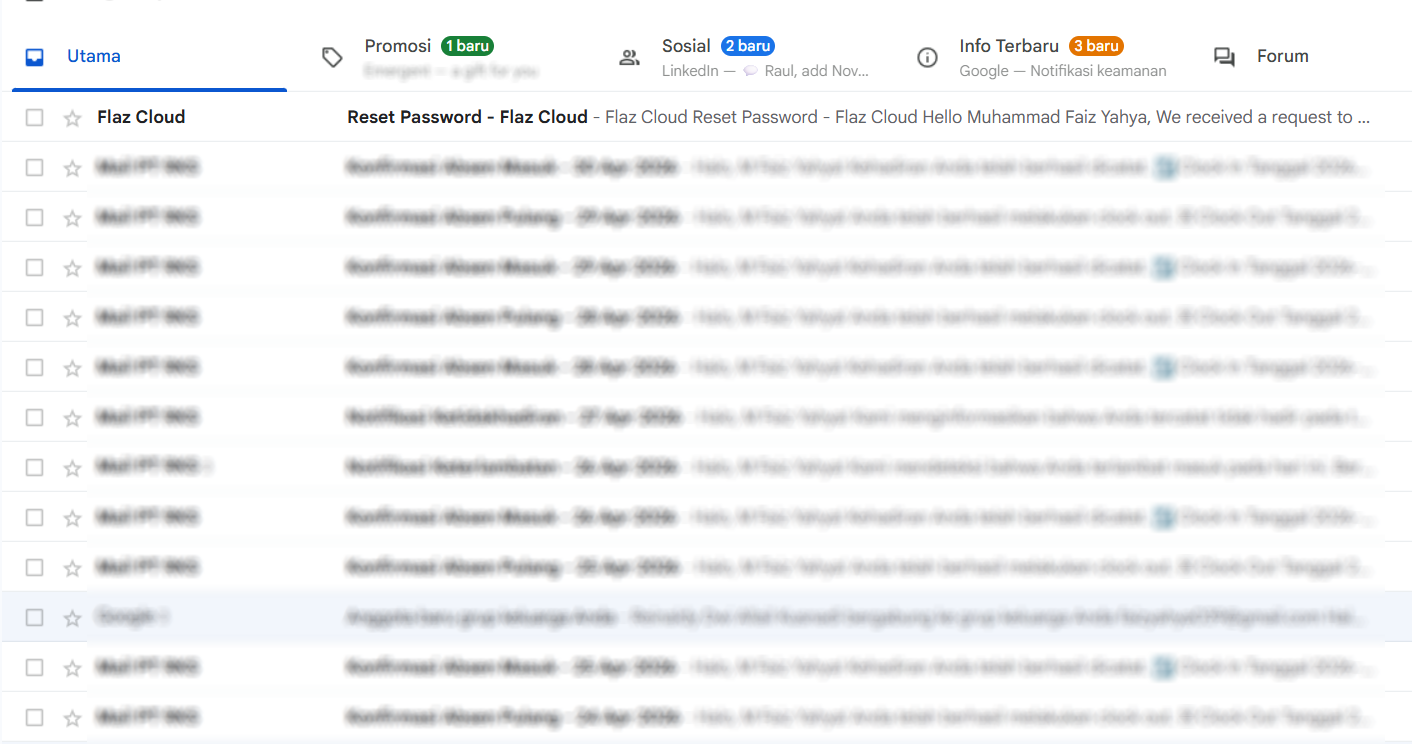
Open a new tab and log into your email account, then look for an incoming message with the subject Reset Password - Flaz Cloud. In that message you will find a button labeled Reset Password.
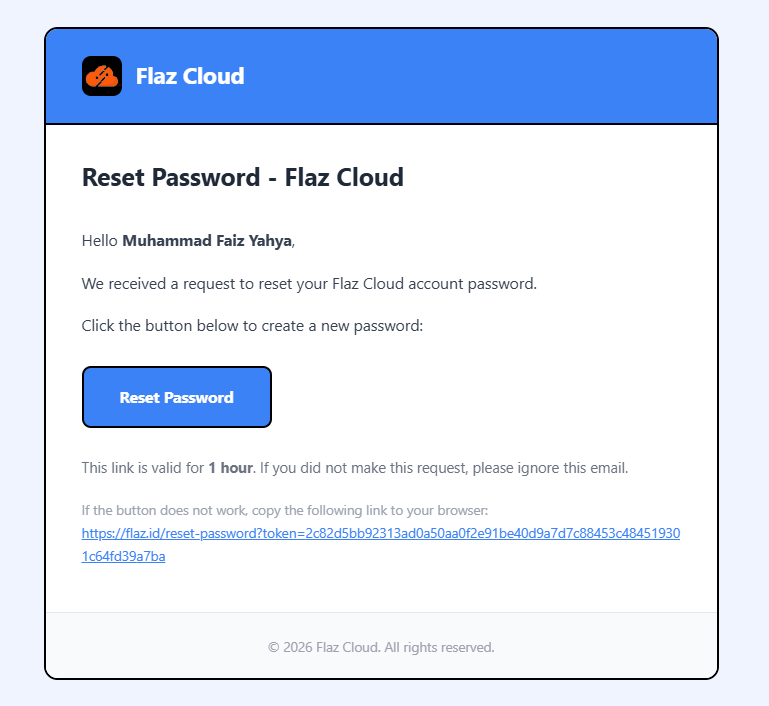
What you need to remember is that this link is only valid for 1 hour for your account security. If the button cannot be clicked due to browser settings, you can copy the long link at the bottom of the email and paste it in your browser address bar manually.
Create a New Password
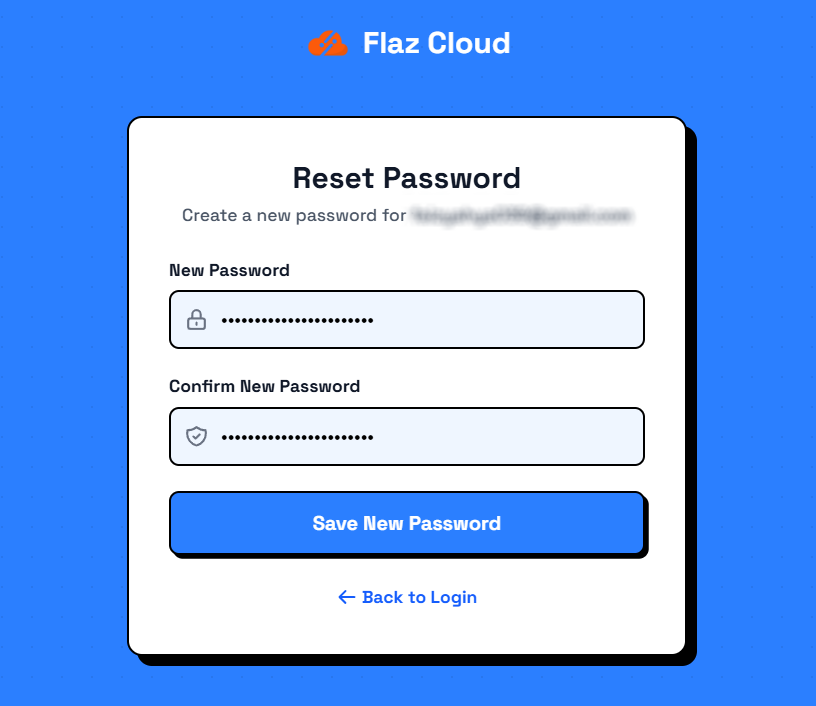
After clicking the link, you will be taken back to the Flaz Cloud page to create a new password. Enter a strong but easy-to-remember password in the provided field. Retype the same password in the confirmation field to ensure there are no typos at all.
Once everything looks correct, click the Save New Password button. Use a combination of uppercase letters, lowercase letters, numbers, and symbols to make your account more secure and harder to guess by others.
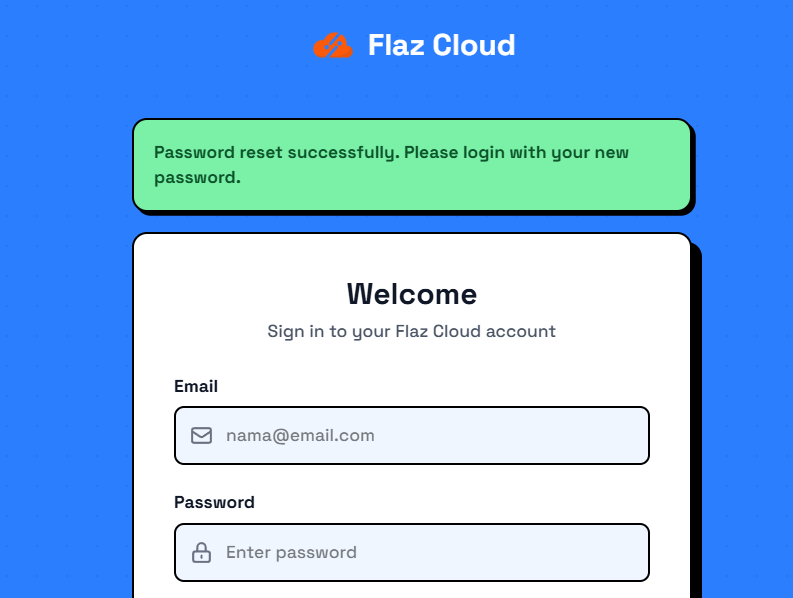
If all steps are correct, the page will automatically switch to the login menu with a success message that the password has been changed. Now you just need to log in using the email and password you just created.
Sometimes emails from the system go to the spam or promotions folder, so if you don't find it in your main inbox, please check those folders. Also, make sure you don't request a reset link multiple times in a short period because the old link will automatically become invalid when a new link is sent by the system.
Was this article helpful?