 Flaz
FlazHow to Use Promo Codes / Vouchers
Get special prices by using promo codes at Flaz Cloud. Learn the easy way to enter vouchers during checkout for your VPS or Web Hosting services.
Who doesn't love discounts when subscribing to digital services? Using promo codes or vouchers at Flaz Cloud is the best way to make your monthly expenses more economical. You can use this feature directly during the process of ordering new services without complicated steps.
The process is very quick and the discount will immediately reduce your total bill right away. Let's discuss step by step how to enter the promo code so you don't miss the opportunity to get a cheaper price.
1. Select the Service You Want to Order
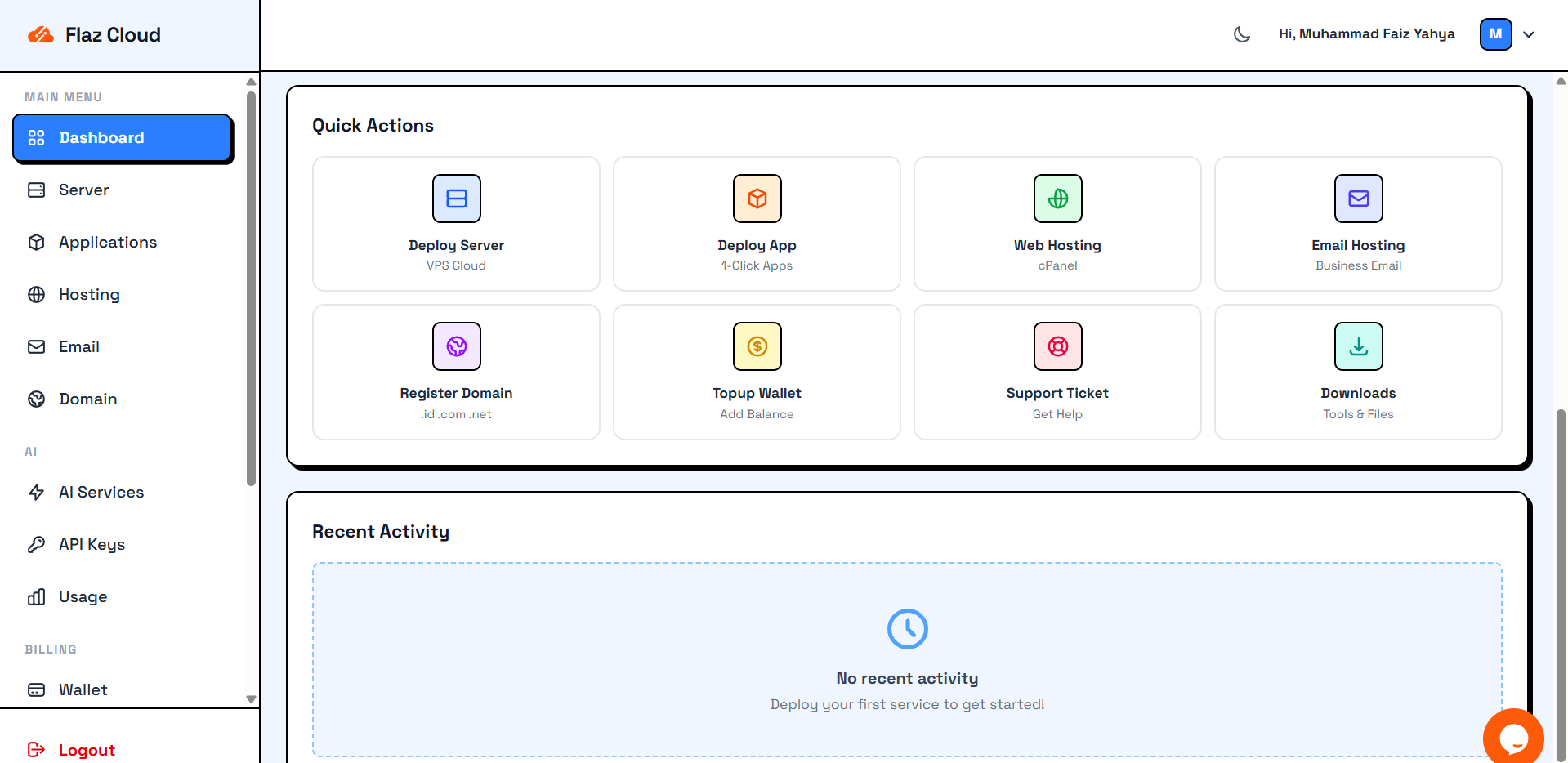
First, please log in to your Flaz Cloud account. On your main dashboard page, you can see the Quick Actions section by scrolling down. There you will find quick options to order VPS Cloud, Web Hosting, or Deploy App.
Besides the main page, you can also click the menu in the left sidebar such as the Applications menu if you want to install instant applications. Make sure your account is ready by following the How to Register a Flaz Cloud Account guide first.
2. Complete Order Details
For example, if you want to Deploy App then you need to fill in some basic information. Enter your application name in the App Name field and then select the desired template such as n8n for automation or WordPress to create a website.
After that, select the package or Plan that suits your server power needs. Don't forget to also select an available server location such as Singapore so access feels faster. Don't forget to perform How to Verify Your Flaz Cloud Account Email so that every order notification arrives in your email safely.
3. Entering the Promo Code
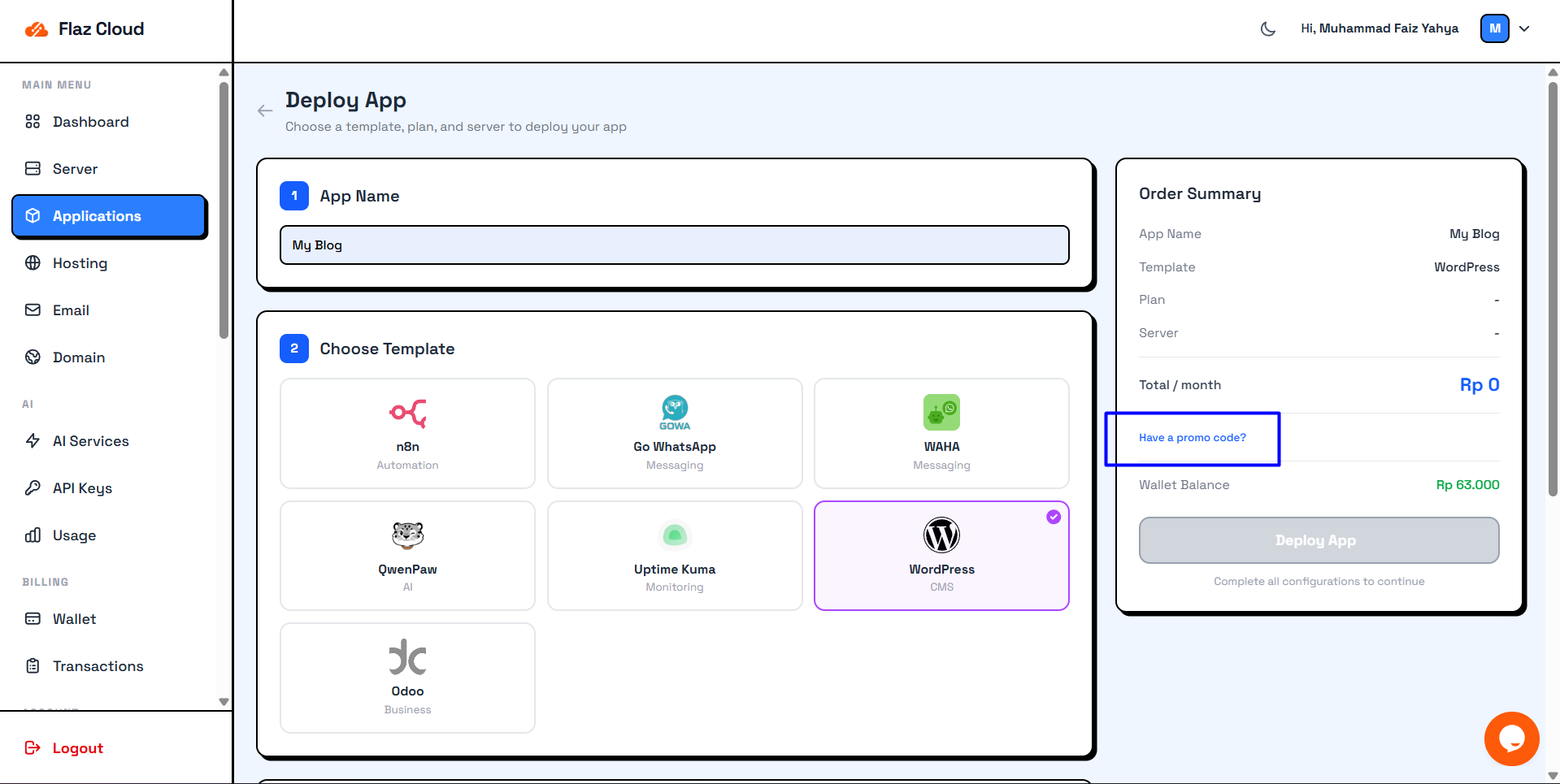
After you have completed all selections, don't immediately click the deploy button. Pay attention to the Order Summary box on the right side of your screen. There you will see a breakdown of the monthly fee that needs to be paid. Click on the blue text that says Have a promo code? which is located below the price breakdown.
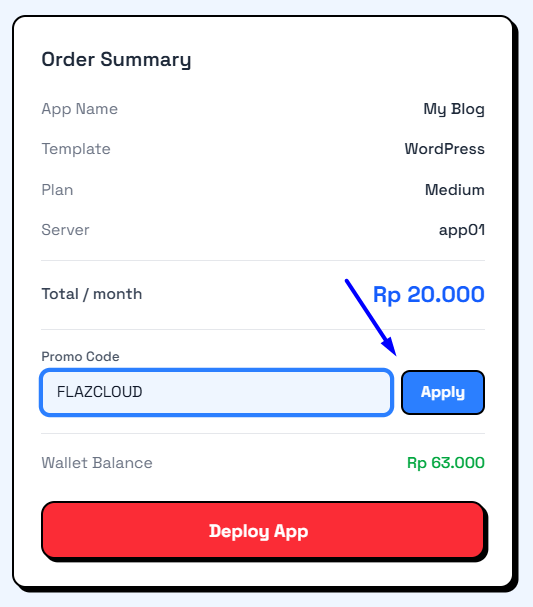
Enter the voucher code you have, for example FLAZCLOUD into that field. One thing that is most often forgotten is clicking the Apply button after typing the code.
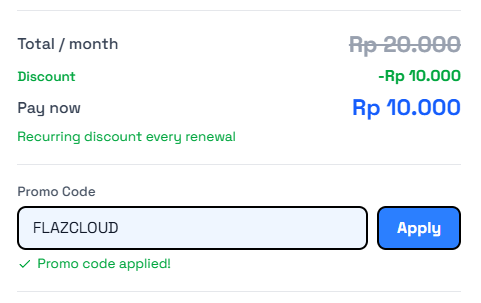
If successful, a success message will appear and the total price will automatically change to a cheaper amount.
4. Complete Payment and Deploy
After the discount is active, you will see the new price breakdown that has been discounted. Check again whether the discount applies only once or repeats every month when renewing. If everything is correct, please click the Pay Now or Deploy App button.
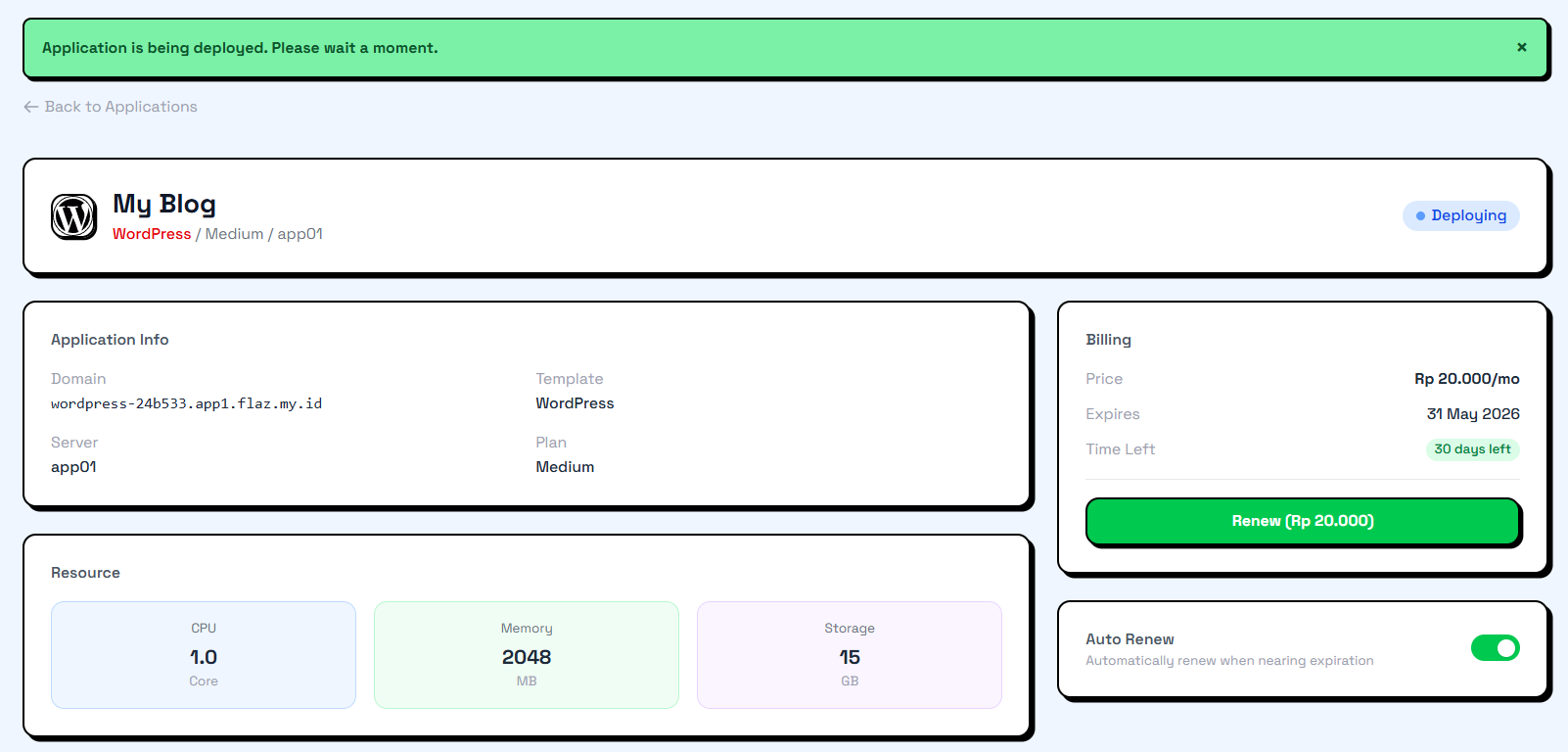
The system will immediately process the installation of your service automatically. Usually this process takes less than 2 minutes and your application is ready to use. If the promo code you entered doesn't work, make sure its validity period hasn't expired or check the capitalization again so there are no errors.
Was this article helpful?