
Want to change website files or upload your own script? Learn the easy way to upload files through cPanel File Manager on Flaz Cloud without needing additional applications.
Uploading your website files manually is the best way if you already have your own website design or want to quickly replace certain files. In cPanel Flaz Cloud, the File Manager feature is available as a very easy-to-use tool, just like managing folders on your personal computer.
You don't need to use additional applications like FTP if you only want to send a few files. Just use your browser and follow the simple steps below so your website files will soon appear on the internet.
Enter the public_html Folder
First, please log in to cPanel of your hosting account. If you don't know how, you can see How to Login to cPanel Flaz Cloud as an initial guide.
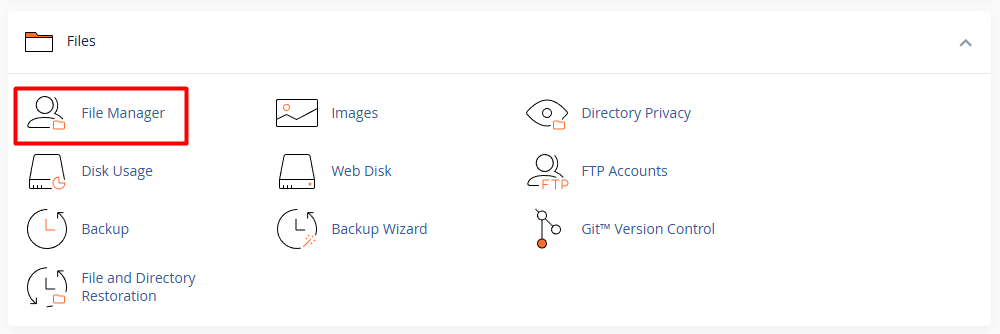
Once on the cPanel main page, find the Files category and click the File Manager menu. When the new window opens, you will see many folders on the left side.
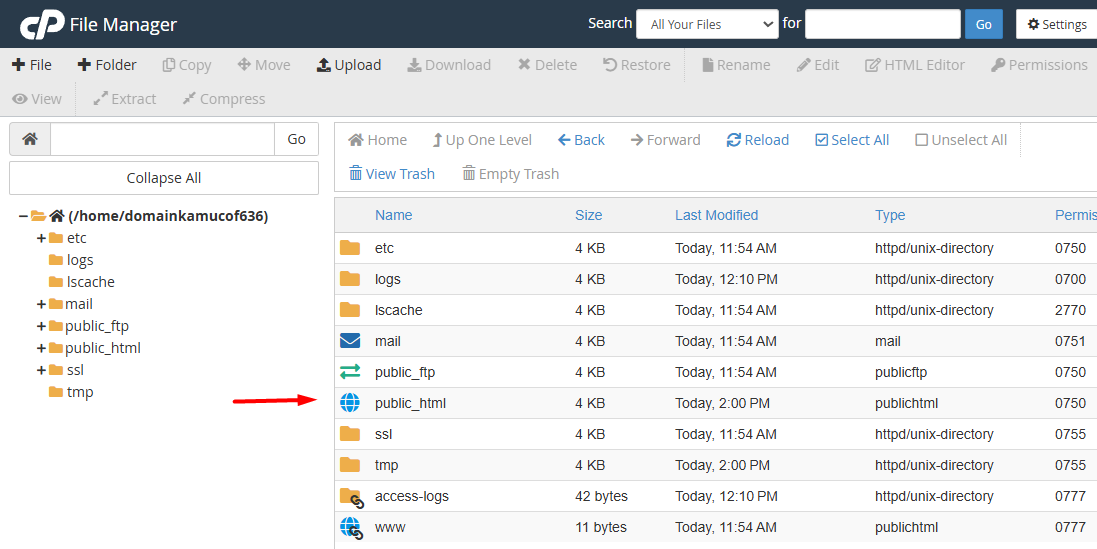
Find and double-click on the folder named public_html. Remember that this folder is the main place for your files to be readable by the public. If placed outside this folder, your website will not appear when accessed.
Starting the File Upload Process
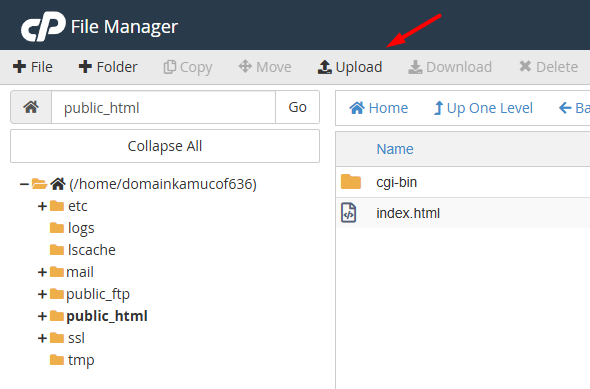
After you are inside the public_html folder, notice the menu bar at the top of the screen. Click the button labeled Upload. A new page will open and this is where you send your website files from your computer.
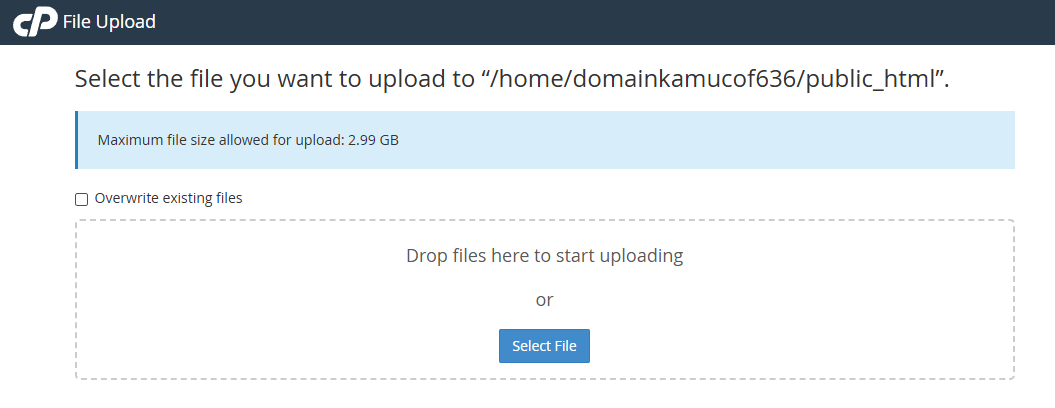
You will see information that the maximum file size that can be uploaded is very large, reaching 2.99 GB. You can drag and drop your files directly into the available box area or click the Select File button to manually search for files on your computer. If you don't yet have a hosting service, please see How to Register a Flaz Cloud Account to immediately have your own data storage.
Handling Duplicate Files (Overwrite)
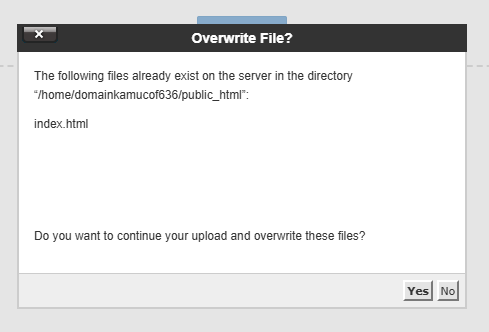
When you upload a file with a name that already exists on the server, for example the file index.html, the system will display a question. You will be asked whether you want to overwrite the old file or not.
If your intention is to update the website content, please select Yes. However, if you're afraid of overwriting by mistake, make sure you've already changed the file name on your computer before uploading it. To ensure notifications about hosting storage usage reach you, make sure you've completed How to Verify Flaz Cloud Account Email correctly.
Completing the Upload Process
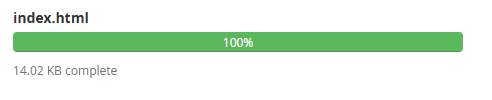
Wait until the progress bar turns green and shows 100%. After completion, click the text Go Back to /home/username/public_html at the bottom of the screen. You will return to the file list and now your new file will appear there.
If the file you uploaded is in .zip format, you can right-click on the file in File Manager and select Extract to extract all its contents into the folder. After that, make sure your main website file named index.php or index.html is already located directly in the public_html folder so your website can be accessed immediately through your domain address.
Was this article helpful?