
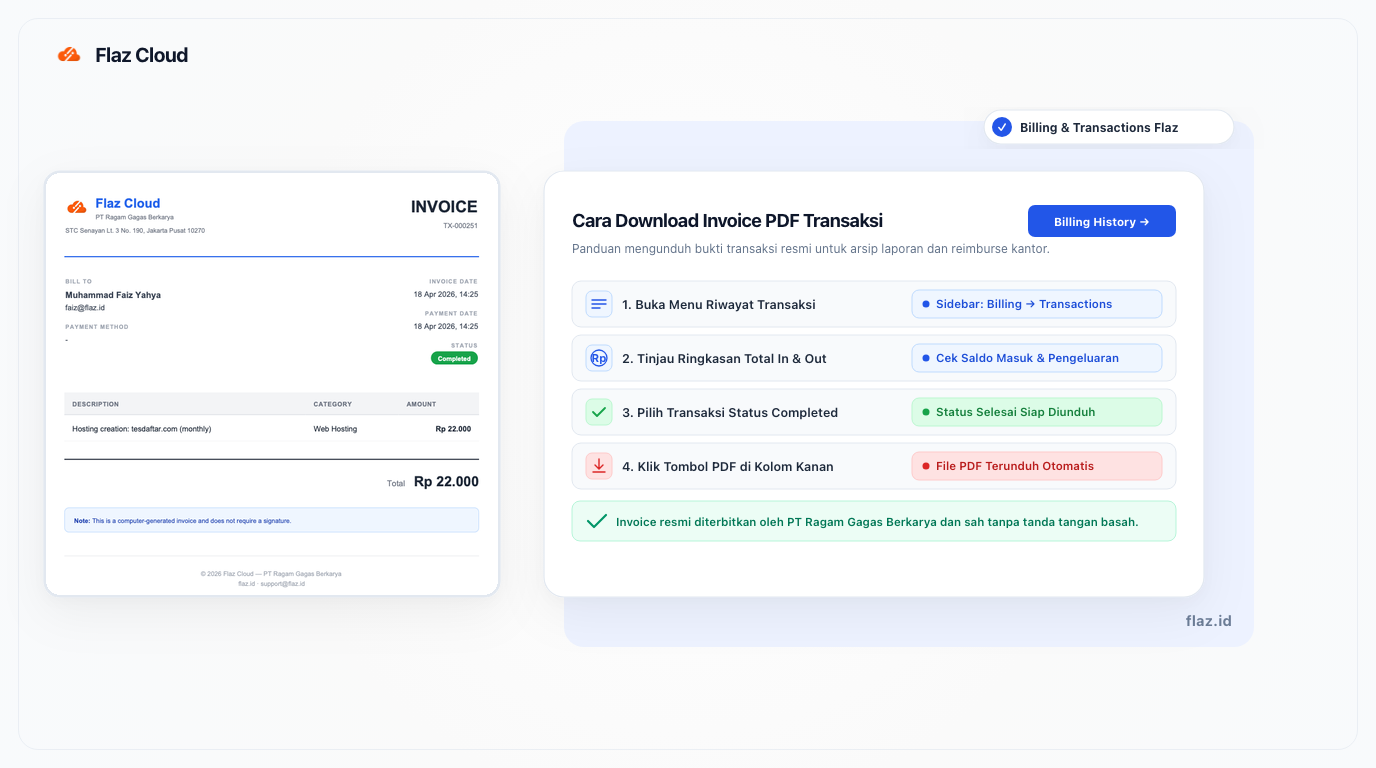
Need proof of payment for your reports? Learn the easy way to download invoice PDFs from every transaction you make on Flaz Cloud through the Transaction History menu.
Having organized financial records helps you manage expenses for digital services. At Flaz Cloud, every transaction you make is automatically recorded and can be downloaded as a PDF for reporting or personal archiving purposes.
The steps to obtain this invoice are very simple and can be done anytime through your account dashboard. Here is a complete guide to view your transaction history and download the proof.
Access the Transaction History Menu
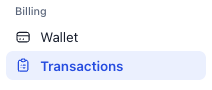
First, please log in to your Flaz Cloud account. Once on the main page, look at the menu options in the left sidebar. Find the menu named Billing and click on Transactions.
On this page you will see a summary of your account finances. There is information about Total In which is the amount of money added to your balance and Total Out which shows how much balance you have used to purchase services. If this is your first time using this service, please follow the guide How to Register a Flaz Cloud Account to get started.
Select the Transaction You Want to Download
In the Transaction History table, you will see a list of all your financial activities. This list includes balance top-ups, server creation, hosting renewal, and domain registration. Each transaction row contains information about the date, category, brief description, and amount.
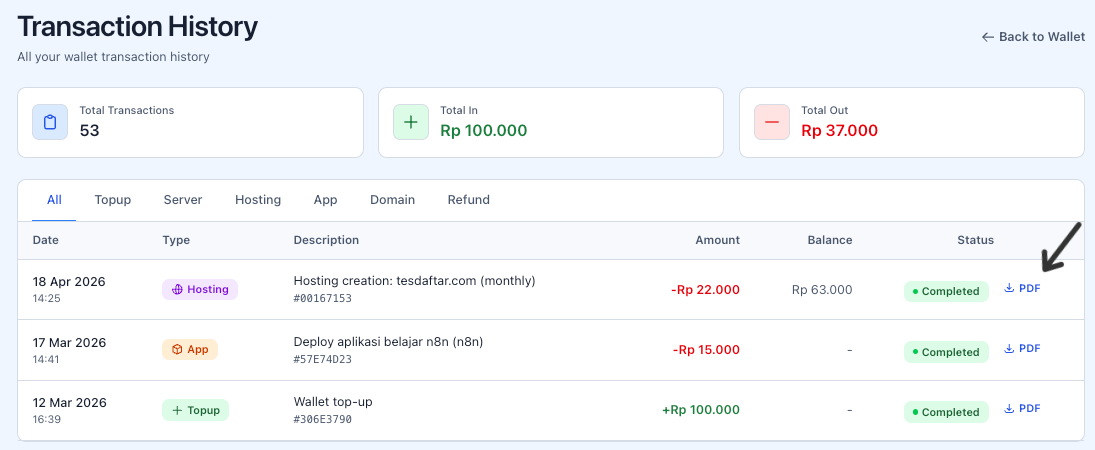
Find the transaction for which you want to get the invoice. Make sure the status in the rightmost column shows Completed. If the status is still Pending, it means the payment is not yet complete or is still awaiting confirmation, so the download button is not yet available. Also make sure your account is fully active by following the steps in How to Verify Your Flaz Cloud Account Email.
Download the PDF File to Your Device
Once the transaction status is Completed, you will see a small button labeled PDF to the right of the status. Click this button and the invoice file will automatically download to your computer or phone.
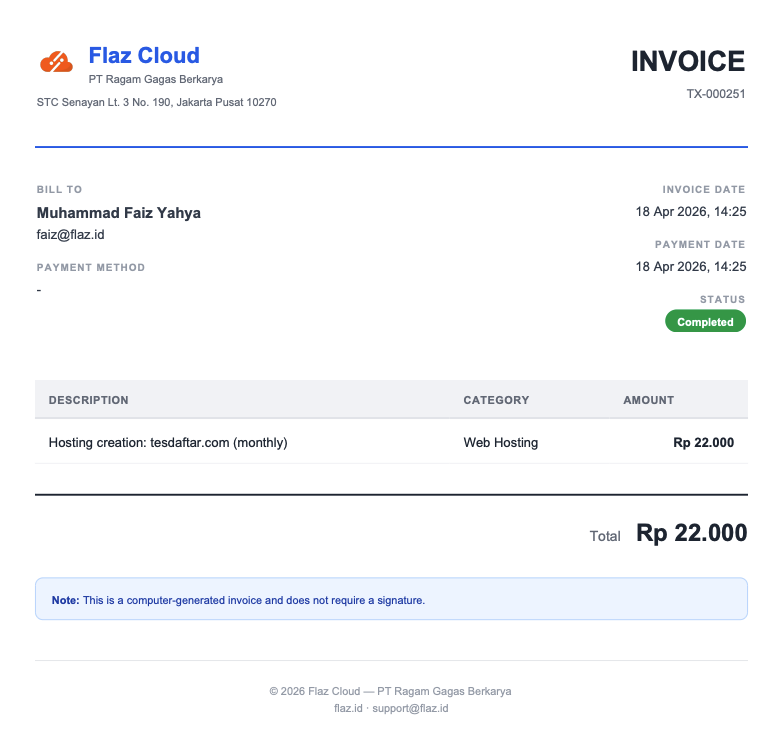
The invoice you receive contains all the information you need. It includes the company name PT. Ragam Gagas Berkarya along with the head office address in Jakarta. It also contains your name, email address, unique invoice number, payment date, and details of the service charges purchased.
Additional Notes
This invoice is created automatically and is valid without requiring a wet signature. You can use this file for reimbursement claims to your office or as proof of payment if needed in the future. If you find an error in the name on the invoice, make sure to update your profile data in the account settings menu so that future transactions appear with the correct information.
Don't forget to always save this file in a safe folder. Although you can download it anytime through the dashboard, having a backup on your own device will make it easier for you when you don't have internet access.
Was this article helpful?