
Want your website to have a green padlock? Learn how to easily install free SSL through the AutoSSL feature in cPanel Flaz Cloud to make your website more secure and trustworthy.
A website with a padlock in its address bar is not just about style, but about the security of your visitors' data. Nowadays, people feel much safer when they see "https" in front of your domain name because the data being sent is well protected.
The good news is that you don't need to spend extra money to get this protection. At Flaz Cloud, we provide an automatic security feature that you can install yourself in just a few clicks without having to wait for lengthy technical support.
1. Access the SSL Settings Page
First, please log in to your cPanel account. If you forgot the path, you can review the guide How to Login to cPanel Flaz Cloud as an initial step to access the main page.
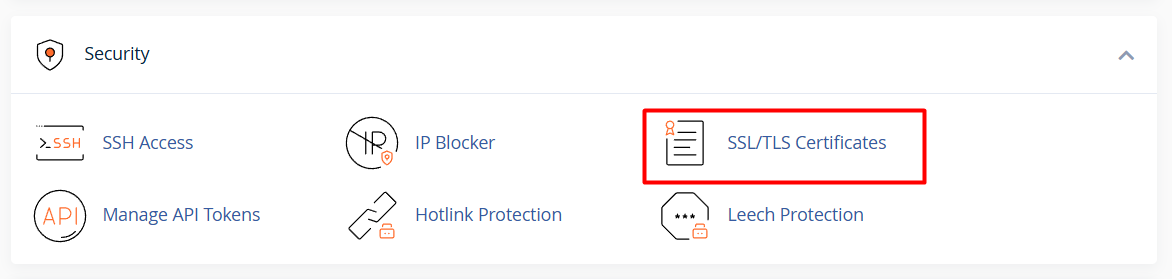
Once inside cPanel, look for the Security category at the bottom section. Click on the menu named SSL/TLS Status. On this page you will see a list of all your domain and subdomain names along with their respective security status. If you are creating an account for the first time, please follow How to Register a Flaz Cloud Account so you can have your own domain name.
2. Select the Domain You Want to Secure
On the SSL/TLS Status page, you will see a padlock icon next to each domain name. If the icon is red, it means that domain does not have protection or its validity has expired.
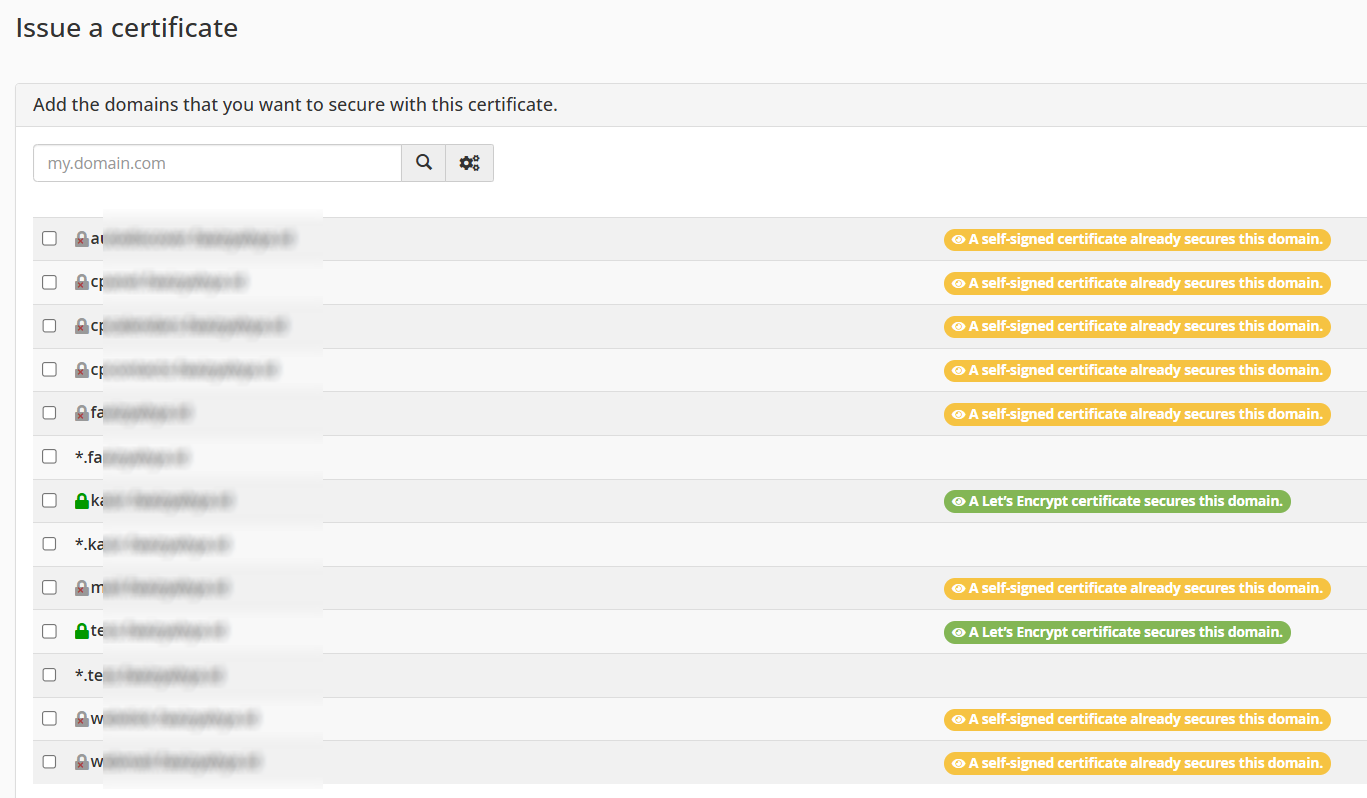
Please check the small box next to the domain name you want to secure. We recommend you check all of them so that both your main domain and subdomains like www.domainanda.com are all equally protected. Also make sure your account is complete by following How to Verify Your Flaz Cloud Account Email so security notifications reach your email.
3. Run the AutoSSL Feature
After you have selected your domains, click the blue button labeled Run AutoSSL at the top of the table. Now you just need to wait for our system to work and automatically find and install security certificates for you.
This process usually takes about 2 to 5 minutes depending on how many domains you are installing. Do not close this page until the red padlock changes to green, indicating that the installation has been completed successfully.
4. Redirect Your Website to HTTPS
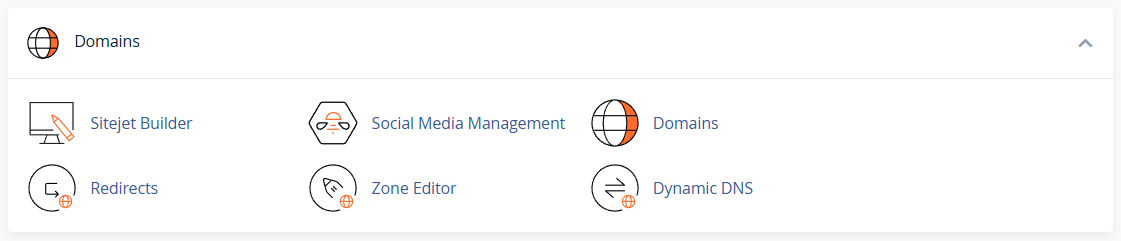
After the green padlock appears, your website can actually be accessed through a secure path. However, sometimes visitors still enter through the old unsafe path. To fix this, you can go to the Domains menu in cPanel and look for the Force HTTPS Redirect option and change its position to On.

By enabling this option, anyone who types your website name will automatically be taken to the secure path with a green padlock at the top. This method is very helpful to make your website look more trustworthy in the eyes of visitors and search engines.
Important Note If It Fails
Sometimes the AutoSSL process fails because your domain is not yet properly connected to the Flaz Cloud server. Make sure your domain IP address settings are correct and wait for the domain propagation time before running this feature.
If you have just changed your domain name or moved hosting, it is best to wait about 1 to 24 hours before trying to install this free protection. Our team is always ready to assist you if you encounter any issues while trying to make your website more secure for visitors.
Was this article helpful?