
Worried about losing website data? Learn how to easily perform a full backup of your website and database in cPanel Flaz Cloud so your data is always safely stored on your personal computer.
Having a data backup is the most effective way to avoid headaches when unexpected errors occur. Imagine if your website suddenly has problems after you change its settings, you can simply restore the data and everything will return to normal as before.
We recommend you perform this process regularly, for example once a week or before you make major changes to your website. At Flaz Cloud, the process of securing this data is made very easy and can be completed in just a few clicks.
Access the Backup Wizard Menu
First, please log in to your cPanel account. If you don't know how, you can check the guide How to Login to cPanel Flaz Cloud as a first step.
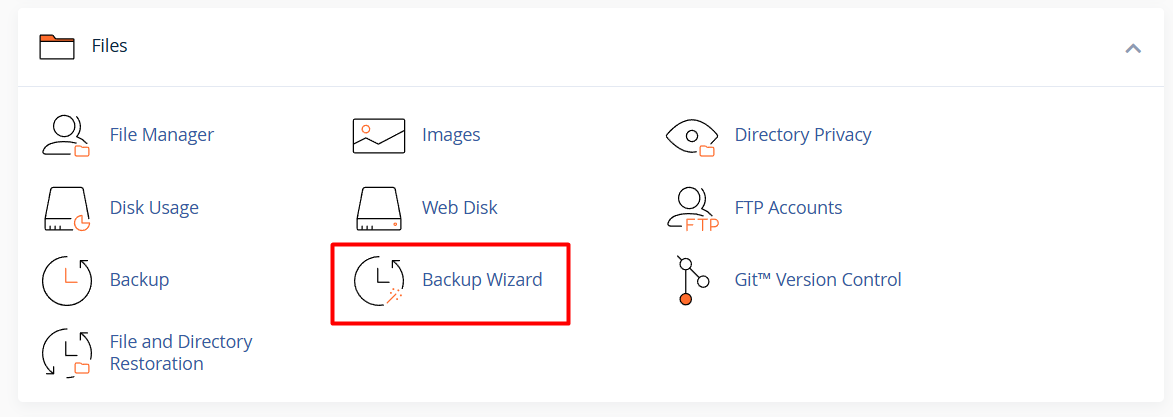
Once on the cPanel home page, find the Files category and click the Backup Wizard menu. This feature will guide you through the data backup process with simpler steps compared to the regular backup menu. If you don't have a hosting service yet, please follow How to Register a Flaz Cloud Account to start building your website right away.
Choose the Type of Backup You Need
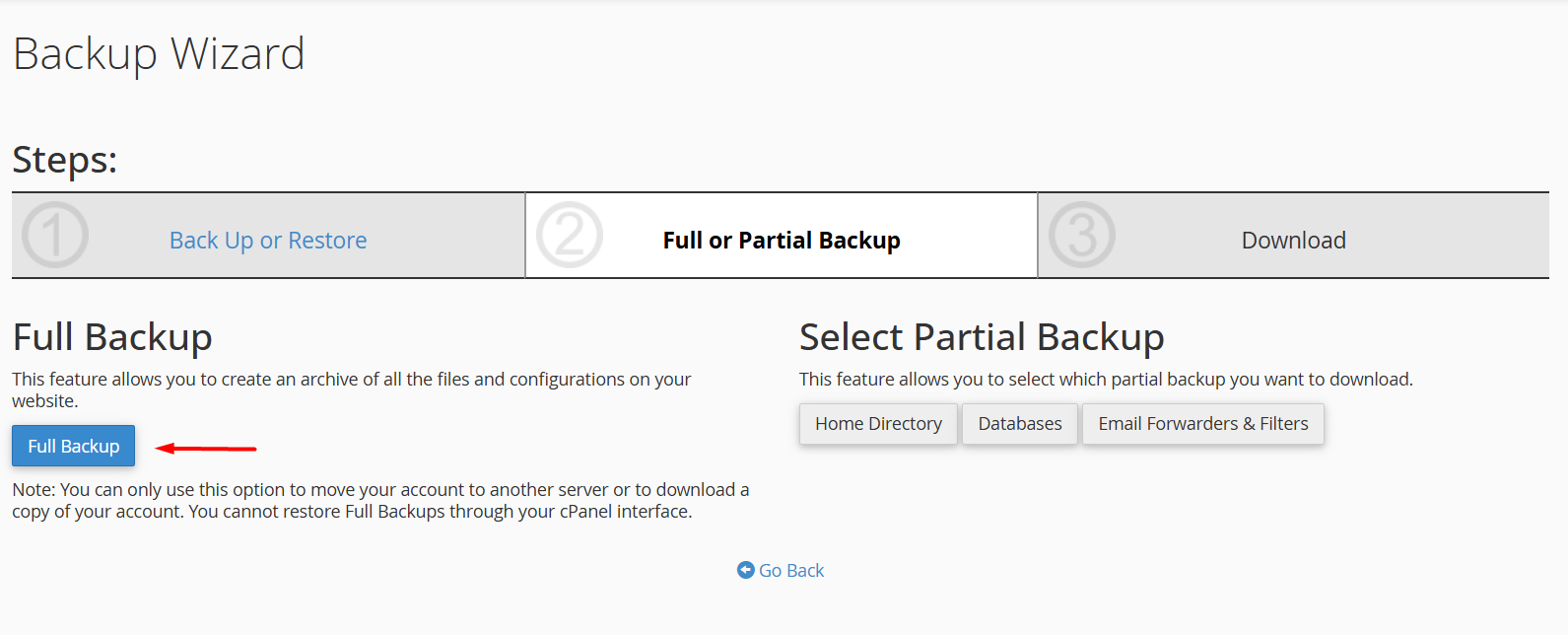
After entering the Backup Wizard page, click the Backup button on the left side. In the next step, you will be given two main options to secure your data.
-
Full Backup: This option will take all the data on your hosting, from website files, databases, to email settings. This is the best choice if you want to migrate hosting or want to keep a very complete backup.
-
Partial Backup: If you only need the website files or database alone, you can choose the Home Directory or MySQL Databases section separately.
Also make sure your account is complete by following How to Verify Flaz Cloud Account Email so that notifications about hosting status remain monitored in your email.
Backup File Creation Process
If you choose Full Backup, you will be asked to determine where to save the file. We recommend choosing Home Directory so the file is temporarily stored in your hosting before you download it to your personal computer.
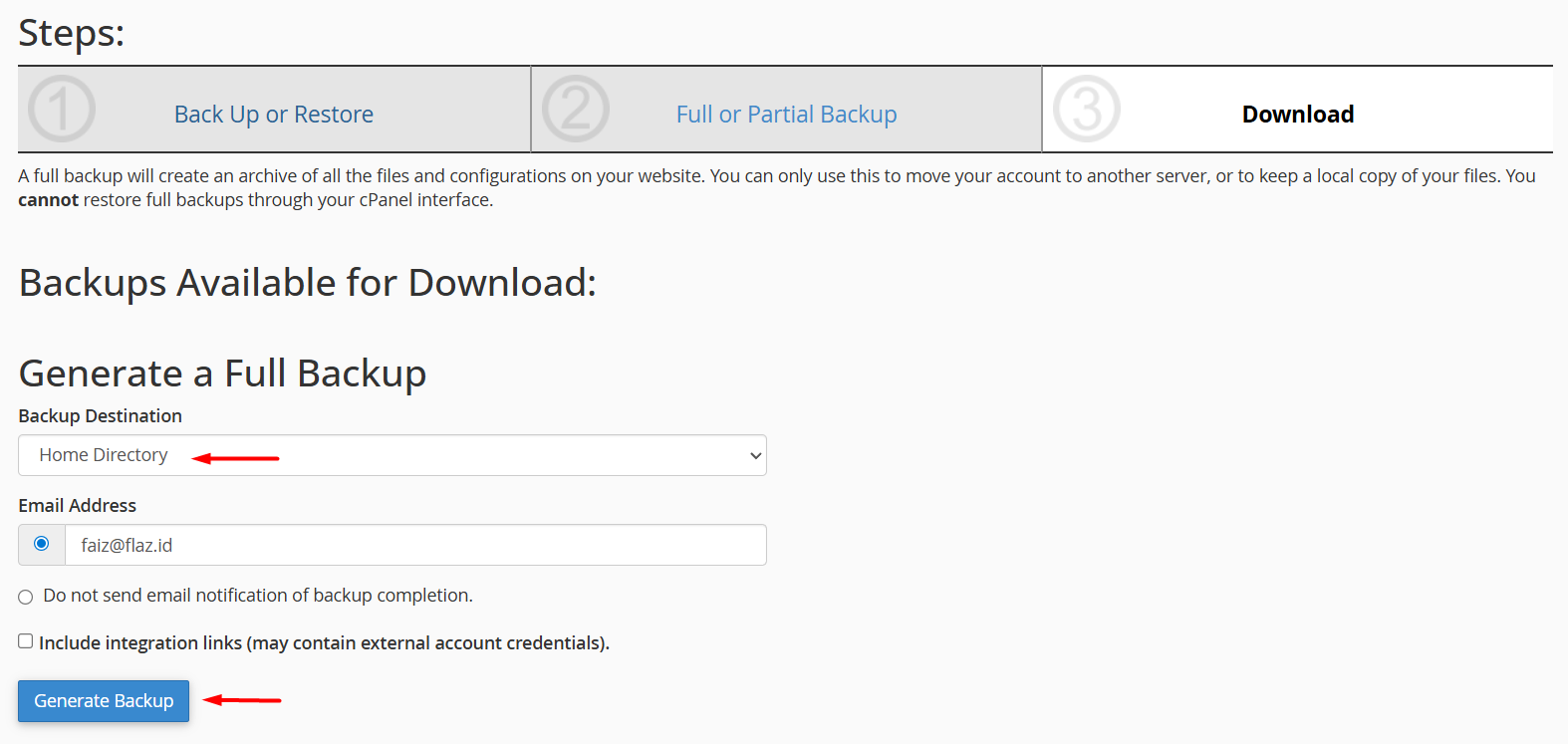
Enter your email address in the provided field so the system sends a notification when the backup process is complete. Click the Generate Backup button and wait a moment.
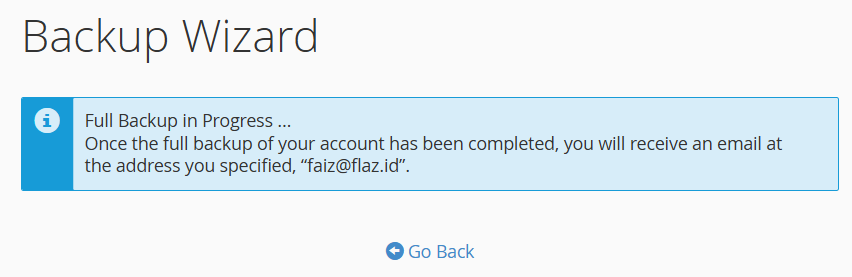
The duration of this process depends on how large your website and database size is.
Download Backup File to Your Personal Computer
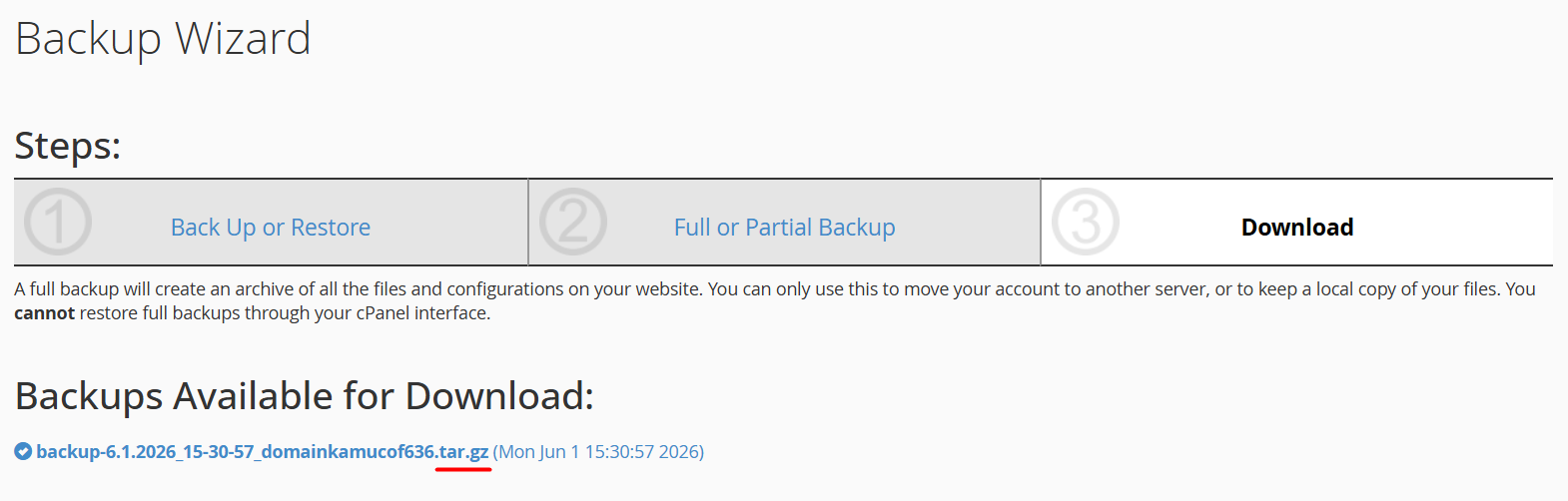
After you receive the notification email or see the status is complete, return to the Backup menu. You will see a link to download the file ending in .tar.gz.
Click the link to save the backup file to your laptop or computer. Store this file in a safe place and never share it with anyone you don't know because this file contains all your website secrets. Having this file on your own computer gives you peace of mind because you have full control over your data.
Additional Notes for You
If you only want to be cautious about minor errors, backing up the Home Directory and MySQL Databases separately is the right choice. These separate backup files can be restored anytime independently through the Restore menu on the same page. Our team is always ready to assist you if you encounter any difficulties while trying to secure your website data.
Was this article helpful?