
New to cPanel and confused by all the icons? Take a quick tour to learn the main cPanel menus at Flaz Cloud and manage your website more easily.
After you successfully follow the guide How to Login to cPanel Flaz Cloud, you might feel a bit confused seeing so many icons. Don't worry, that's normal for anyone opening a website control panel for the first time.
Actually, you don't need to memorize all the menus available. There are several main sections that you'll use most often to manage your website, email, and files. Let's take a quick tour to learn about these important sections so you can work faster.
1. Initial Consent (Consent and Privacy)
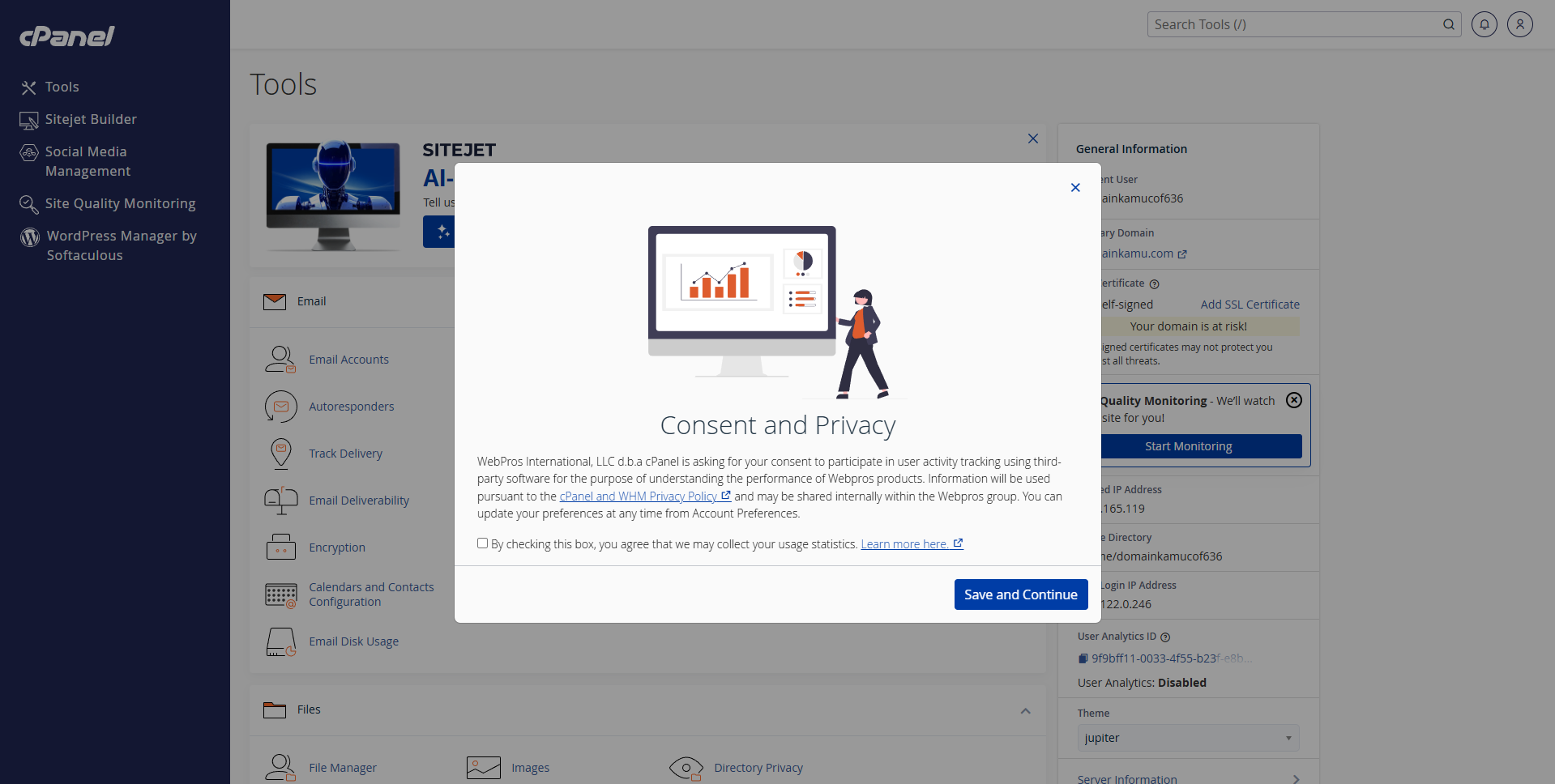
When you first log in, a message box usually appears regarding Consent and Privacy. This is just a request from cPanel for permission to monitor usage activity to improve service quality. You can check the available box and click agree to enter the main view.
2. Monitor Capacity in the Right Sidebar
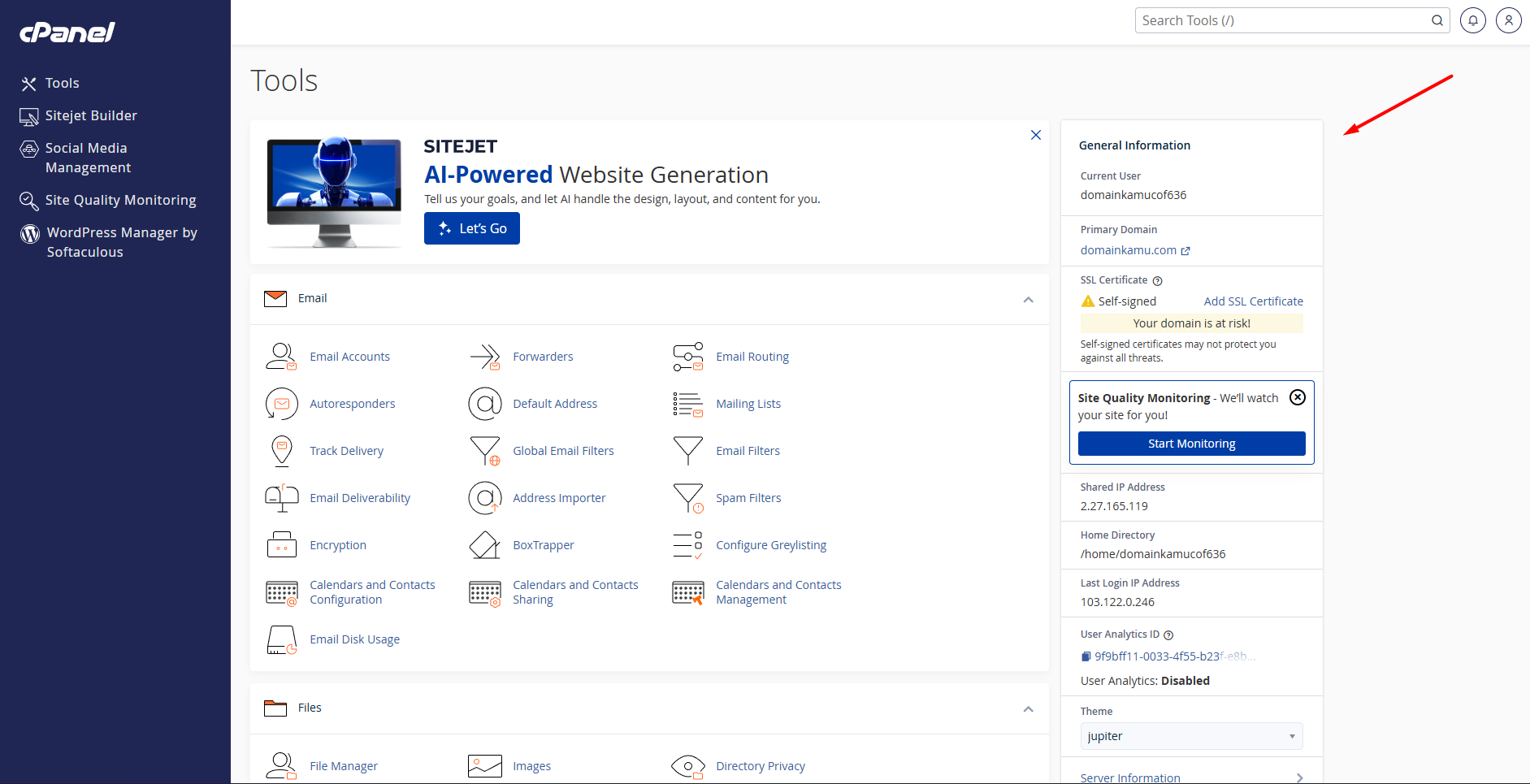
On the right side, you'll see the General Information and Statistics boxes. This section is very useful for monitoring your hosting "health" without opening any menu.
-
Disk Usage: Tells you how much storage space you have left. Make sure it doesn't get full so your website doesn't slow down.
-
Email Accounts: Shows how many email addresses you've created.
-
CPU & Memory Usage: Monitors how heavy your website's workload is currently.
-
Shared IP Address: Your hosting IP address which is useful when you want to connect a domain from outside.
If you don't have a domain or account yet, please learn How to Register a Flaz Cloud Account to start your website journey.
3. Email Section: Creating Professional Addresses
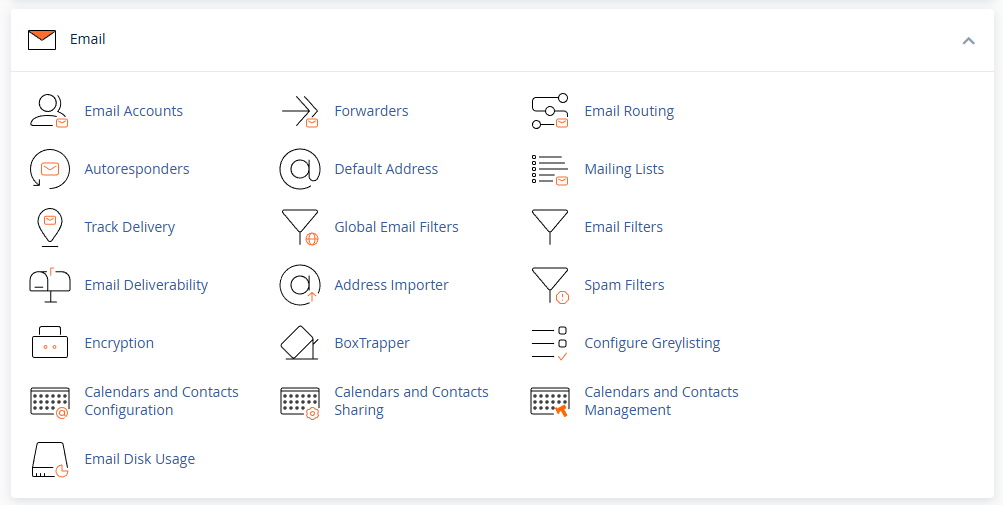
This is the section most sought after by new users. In the Email category, the most frequently used menus are:
-
Email Accounts: Where you create email addresses with your own domain name, for example admin@yourdomain.com.
-
Forwarders: Useful for forwarding incoming emails to another address, for example from work email to personal email.
-
Spam Filters: Settings to keep your inbox clean from unclear spam messages.
4. Files Section: Data Storage Cabinet
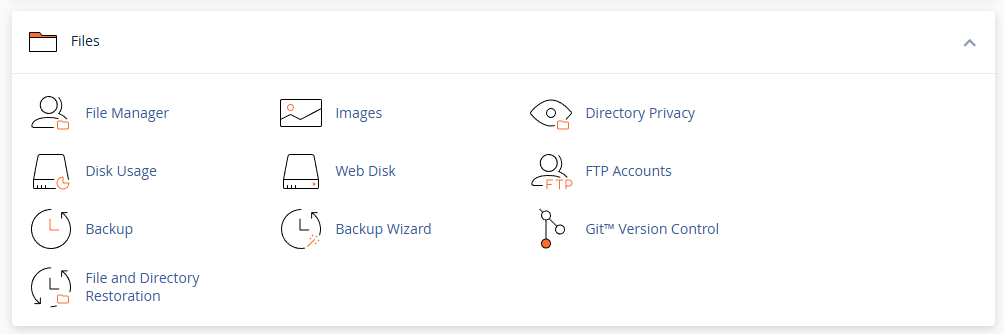
The Files category is where all your website data is stored. Think of this like a document folder on your computer.
-
File Manager: The main menu for uploading, deleting, or editing your website files. Remember, main website files are always placed in a folder named public_html.
-
Disk Usage: More detailed explanation about which folders are taking up a lot of storage space.
5. Databases Section: The Brain of Your Website
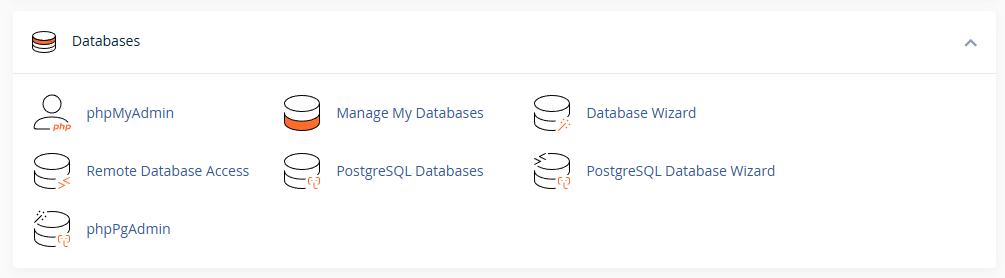
If you're using WordPress or similar applications, all posts and account data are stored here.
-
MySQL Databases: Where you create a new database.
-
phpMyAdmin: A tool to manage the contents of the database. Usually you only open this if you want to change website settings directly or fix data errors.
6. Domain Settings and Website Address
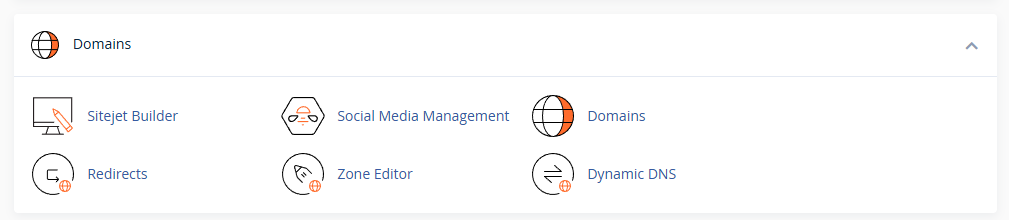
The Domains section is very important for managing how others access your website. The Domains menu allows you to add new web addresses to the same hosting. If you want to redirect one address to another, you can use the Redirects menu.
There's also a Zone Editor that functions to manage DNS records like A record or MX record. This is very useful if you want to connect third-party services like email from Google or other providers.
7. Monitor Statistics Through Metrics
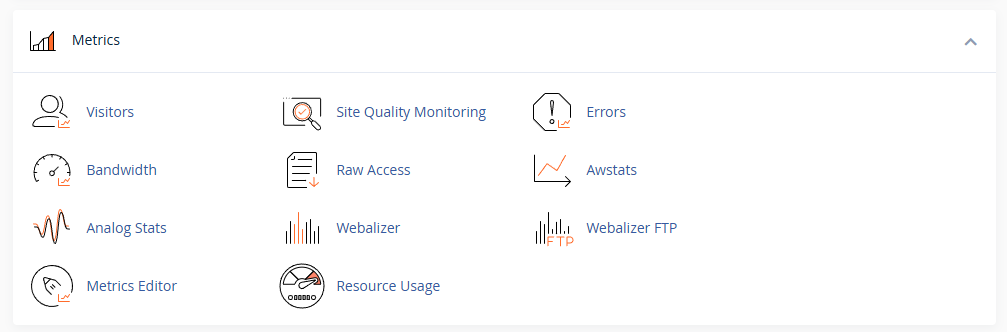
You certainly want to know how many people visit your website. In the Metrics section, the Visitors menu will give you a list of who has visited your web. If your website feels slow, you can check the Errors menu to see if there are any broken files.
The Bandwidth menu helps you see how much data traffic has been used. Besides that, there's a Resource Usage menu that tells you whether your RAM or CPU usage is approaching the maximum limit or not.
8. Security and Data Protection
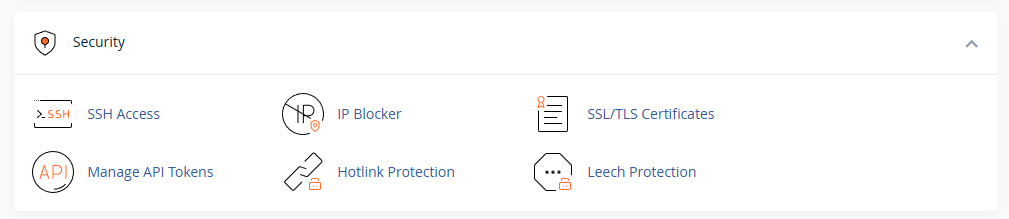
Website security should always be your priority. In the Security section, you can find the SSL/TLS Certificates menu to install a security lock on your website address so visitors feel safe.
There's also an IP Blocker menu if you want to prevent people from certain internet addresses from accessing your web. If you want to give remote command access to developers, you can use the SSH Access menu carefully.
9. Software Installation and Programming Languages
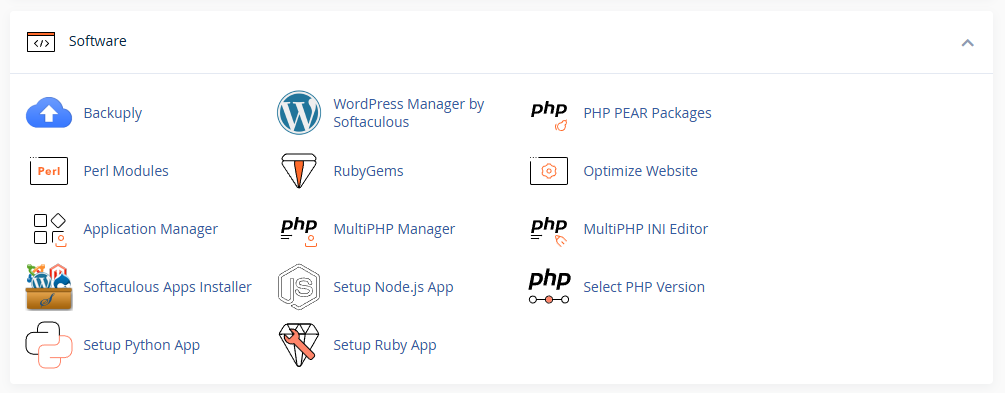
The Software category is very helpful for application developers. The Select PHP Version menu allows you to choose the right PHP version for your website. If you want to build more advanced applications, there's also Setup Node.js App and Setup Python App menus.
The Optimize Website feature can also be used to make page loading faster for visitors. Everything can be set with just a few clicks without any hassle.
10. Advanced Settings
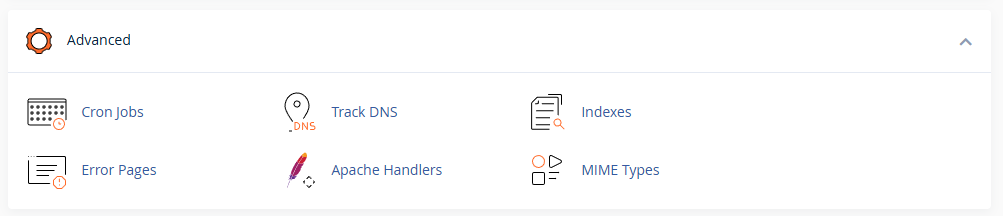
For those of you who are more experienced, the Advanced section provides a Cron Jobs menu which is useful for running automatic commands at certain times. There's also an Error Pages menu if you want to create a custom display when a web page is not found.
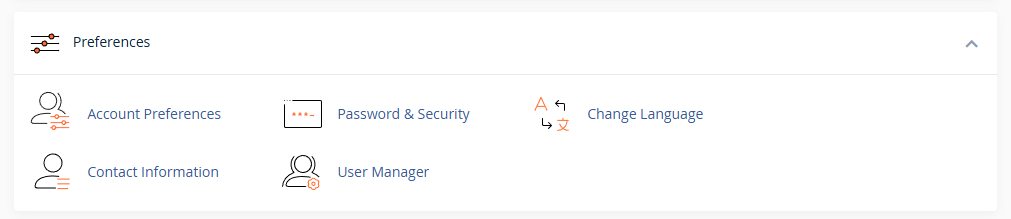
In the Preferences section, you can change your account password in the Password & Security menu. If you're more comfortable using a certain language, please use the Change Language menu to adjust your control panel display.
11. Install Applications with One Click Using Softaculous
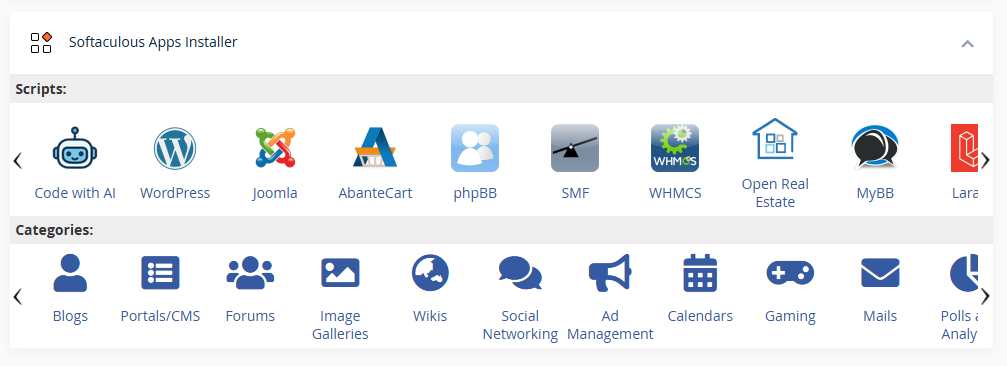
This is the bottom section but very useful. Softaculous Apps Installer makes it easy for you to install WordPress, Joomla, or hundreds of other applications in minutes. You just need to fill out a short form and click install without having to upload files manually.
It's highly recommended that you verify your Flaz Cloud account email so that every usage report from the Metrics menu can be sent to your email. If you don't have an account yet, please see How to Register a Flaz Cloud Account to start your first website.
Important Notes for You
Always make sure you have verified your Flaz Cloud account email so that every information about resource usage or hosting bills can reach your email safely.
Learning these menus will make you more confident in managing your website. If at any time you feel confused or accidentally press a menu, don't hesitate to ask our support team. We're ready to accompany you until your website is truly ready to launch.
Was this article helpful?