
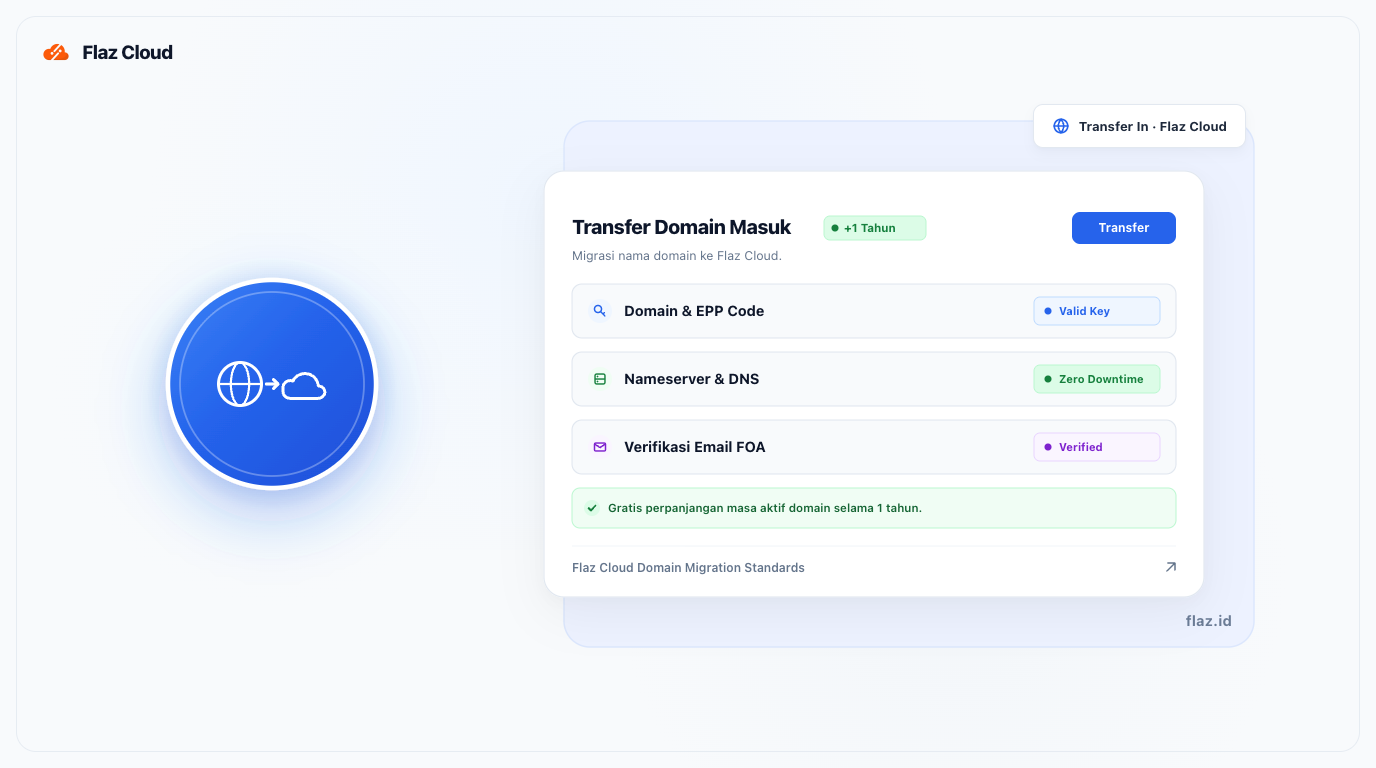
Want to move your domain to Flaz Cloud? Follow this easy guide using EPP code and domain transfer steps so your domain validity automatically extends.
Transferring domain management from your old provider to Flaz Cloud will greatly simplify your work because all VPS, hosting, and domain services can be managed in one dashboard. This process will not disrupt your website access as long as you don't change the Name Server settings.
One interesting thing is that when the transfer process is successful, your domain validity will automatically extend by one year from the current expiration date. Follow the steps below to ensure your domain transfer runs smoothly.
Step 1 Preparation at Your Old Domain Provider
Before starting at Flaz Cloud, you must first prepare your account at your old domain provider. There are two main things you must do.
First, make sure your domain status is Unlocked or the lock has been removed. Second, you must request the EPP Code or Auth Code which is a secret code for transferring the domain. Also make sure your domain is at least 60 days old and not in dispute.
If you just joined and don't have an account with us yet, please follow the How to Register a Flaz Cloud Account guide so you can access the main dashboard.
Step 2 Go to Domain Transfer Menu
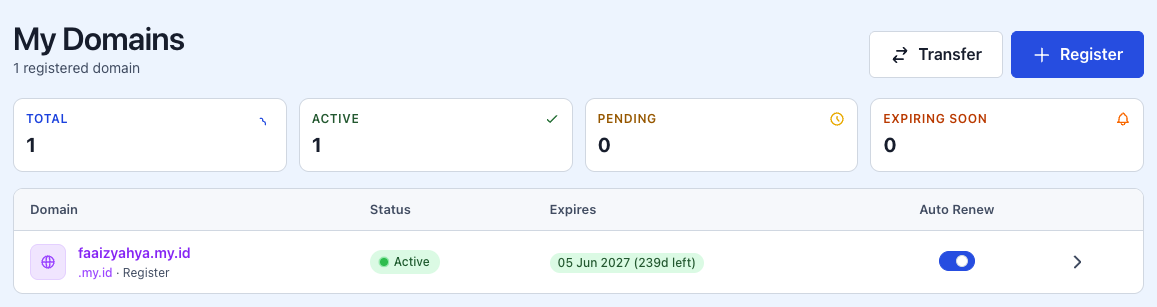
After obtaining the EPP code, please log in to your Flaz Cloud dashboard. Click the Domain menu on the left side of the screen. On that page, you will see menu options at the top, please click on the Transfer tab.
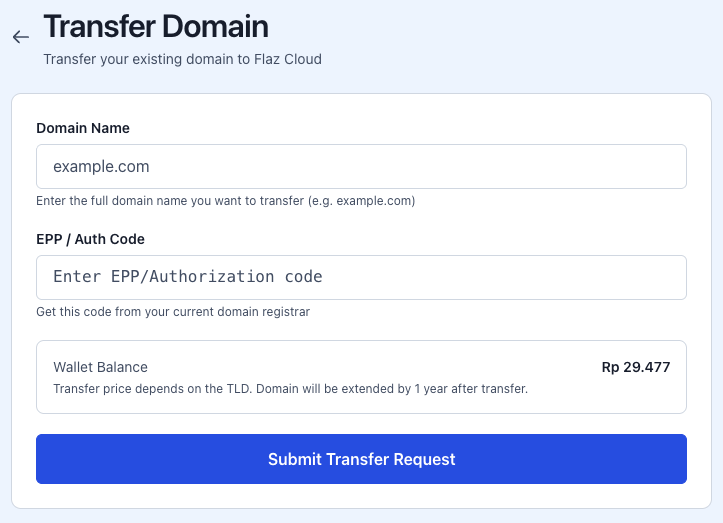
This page will display a domain data entry column and a list of transfer prices for various domain extensions or TLDs. Also make sure your account is complete by following the How to Verify Flaz Cloud Account Email so that transfer approval notifications can reach your email.
Step 3 Enter Domain Name and EPP Code
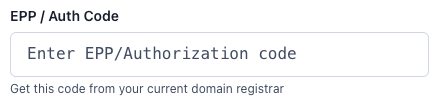
In the Domain Name field, enter your complete domain name that you want to transfer (example: yourdomain.com). Then in the EPP / Auth Code field, enter the secret code you obtained from your old provider.
Before proceeding, check your wallet balance first because the domain transfer fee is the same as the one-year renewal fee. If your balance is insufficient, you can follow the How to Top Up Flaz Cloud Wallet Balance so the transfer request can be processed immediately by the system. Click the Submit Transfer Request button if all data is correct.
Step 4 Approval and Waiting Period
After your request is sent, the system will send a confirmation email to the email address registered as the domain owner (admin contact). You must click the approval link in that email so the transfer process can begin.
Now you just need to wait. The global domain transfer process usually takes between 5 to 7 business days. During this waiting period, you don't need to do anything else. The domain will automatically appear in your Flaz Cloud account with Active status after the process is complete.
Important Notes
There are several conditions that can cause the transfer process to fail, for example the domain is still locked, the EPP code is incorrect, or the domain was recently renewed at the old provider less than 60 days ago. If this happens, your request will be rejected and you must repeat the process from the beginning.
Also make sure the domain owner information (WHOIS) belongs to you so the confirmation email doesn't go to someone else. If you have difficulty obtaining the EPP code from your old provider, our team is always ready to assist you by providing guidance through the support ticket in the dashboard.
Was this article helpful?