
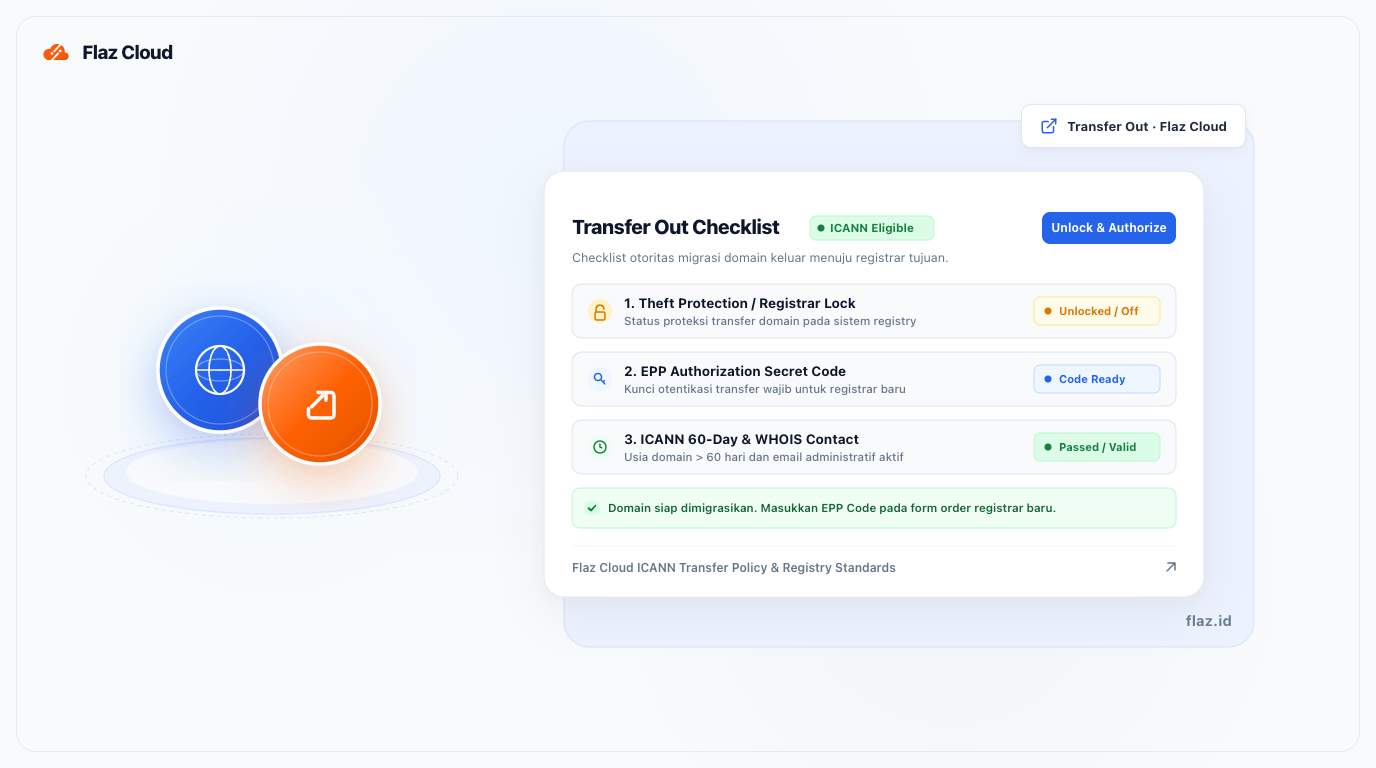
Want to move your domain elsewhere? Follow this easy guide on how to disable domain lock and view your EPP code in the Flaz Cloud dashboard for a smooth transfer process.
If you feel the need to move your domain management to another provider, we have provided a self-service feature so you can do it very easily without having to wait for a long manual approval.
However, before doing so, we recommend you reconsider because managing all services in one place at Flaz Cloud is certainly much more convenient. If your decision is final, follow the steps below to prepare your domain for transfer.
Step 1 Select the Domain You Want to Transfer
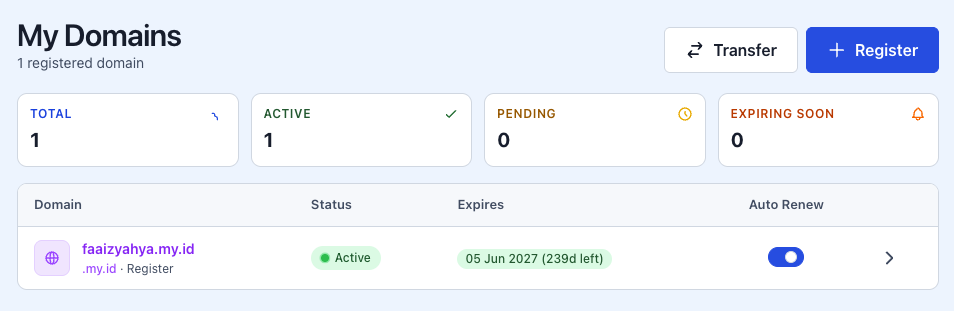
First, please log in to your Flaz Cloud dashboard. In the menu section on the left, click the Domain menu. This page will display a list of domains you currently own. Click on the domain name you want to transfer to another provider.
If you have just registered a domain or recently transferred it in within 60 days, please note that according to global rules, that domain cannot be transferred yet. Also make sure your account is complete by following How to Register a Flaz Cloud Account so that all domain settings menus can open perfectly.
Step 2 Disable Theft Protection Feature
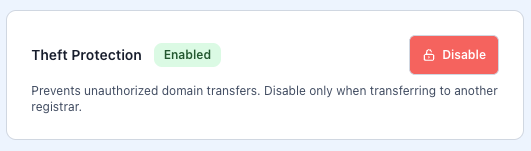
Every domain at Flaz Cloud comes with a Theft Protection feature to prevent your domain from being transferred by irresponsible parties. You must disable this feature first so the domain can "leave" our system.
In the Theft Protection section, you will see the status as Enabled with a red button labeled Disable. Click that button to unlock your domain. Once it changes to Disabled, your domain is ready to be transferred.
Step 3 Obtain the EPP Code (Auth Code)
Your new domain provider will certainly request a secret code to start the domain withdrawal process. This code is called the EPP Code or Auth Code. At Flaz Cloud, you can view this code directly yourself.
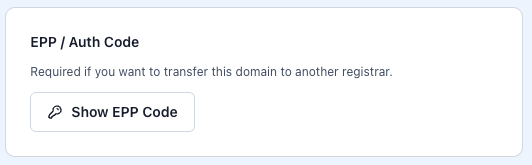
Still on the same page, find the section labeled EPP / Auth Code. Click the blue button labeled Show EPP Code. The system will display a unique code consisting of letters and numbers. Please copy this code and save it in a safe place. Also make sure your email is correct by checking How to Verify Your Flaz Cloud Account Email because all transfer notifications will be sent to that email.
Step 4 Process with New Provider
Now you just need to provide the domain name and EPP code to your new domain provider. After the new provider initiates the transfer request, you will receive a confirmation email from our system. Please click the approval link in that email to speed up the process.
This domain transfer process usually takes about 5 to 7 business days. During this process, make sure you do not change the Name Server settings so your website remains accessible to visitors as usual.
Additional Notes
Remember that after the domain is successfully transferred, you will manage its renewal billing at the new provider. If you ever want to return to our service, you can follow the guide How to Transfer Domain Into Flaz Cloud anytime.
We are always open if you have any issues or questions about why you decided to transfer your domain. Do not hesitate to reach out to our support team via ticket so we can help smooth out all your technical matters.
Was this article helpful?