
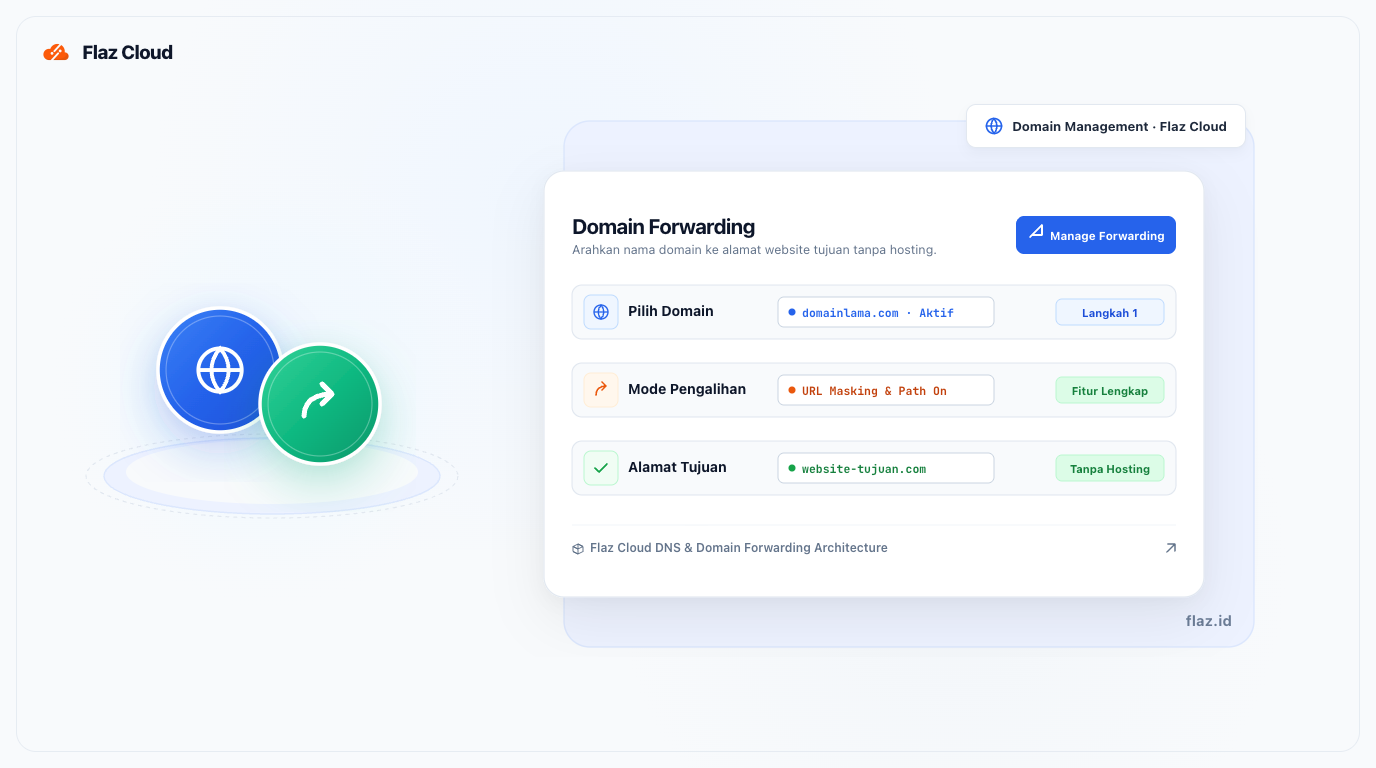
Want to redirect your domain to Instagram or online store without hosting? Learn how to easily setup Domain Forwarding on Flaz Cloud directly from your dashboard.
Sometimes you want to redirect a domain name to another address without having to purchase a hosting service first. For example, you want the domain to directly open your social media profile page or online store on a marketplace. At Flaz Cloud, the Domain Forwarding feature is already available and you can use it for free through the domain dashboard.
This feature is very useful so that the domain name you own doesn't go unused and can immediately provide benefits to visitors. You don't need to worry about setting up redirect scripts because everything is automatically configured by our system.
Step 1 Access Domain Details
First, please log in to your Flaz Cloud dashboard account. In the menu bar on the left, click the Domain menu and select the domain name you want to enable the address forwarding feature for.
If you just registered a new domain, make sure its status is already active. You can view the guide How to Register a New Domain on Flaz Cloud if you don't have your own domain yet. Also make sure your account is ready by following How to Register a Flaz Cloud Account to make management easier.
Step 2 Open Domain Forwarding Menu
After the domain details page opens, scroll down until you find the section labeled Domain Forwarding. Inside that box, you will see a blue button labeled Manage Forwarding.
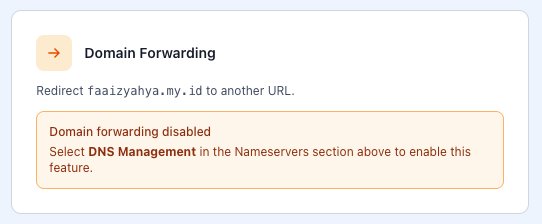
Click that button to open the settings window. Also make sure your email is active by following the steps in How to Verify Your Flaz Cloud Account Email so that setting notifications remain secure.
Step 3 Fill in the Destination Address
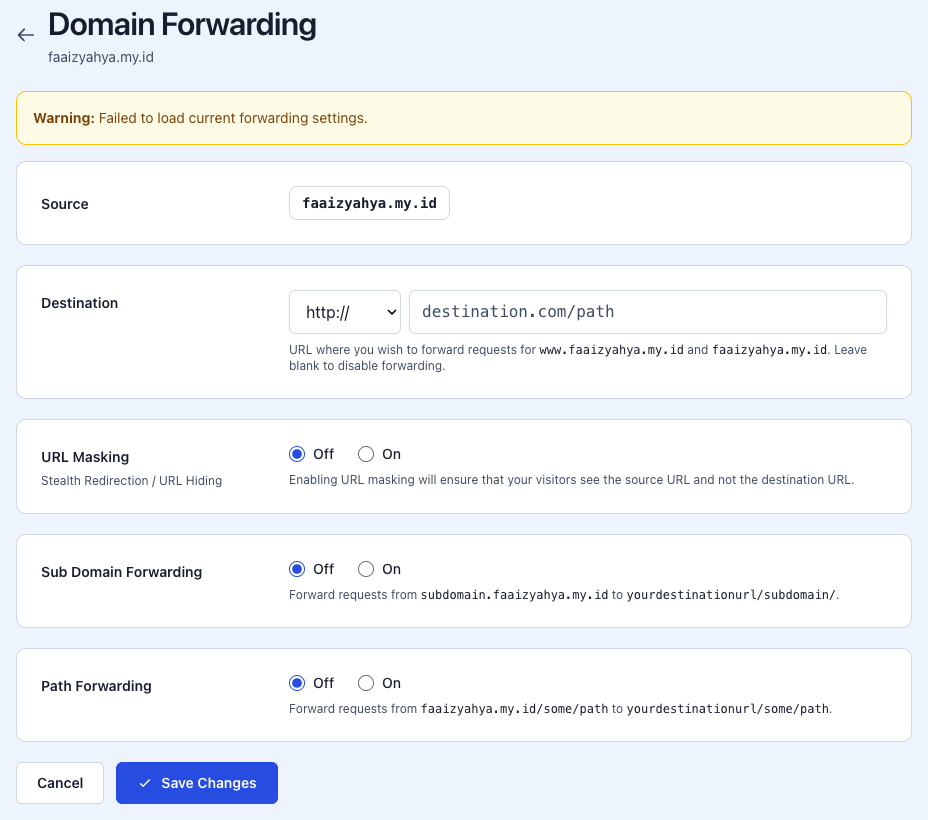
On this page you will be asked to fill in some basic information so the system knows where to direct visitors.
-
URL Masking: If you enable this option (On), visitors will still see your old domain name in the browser address bar, even though the content is the destination website. This is great if you want to hide the actual address of the destination website.
-
Sub Domain Forwarding: If you enable this, all requests from subdomains (for example: blog.domainlama.com) will also be redirected to the same folder on the destination website.
-
Path Forwarding: This option will forward visitors to a specific folder. If someone opens domainlama.com/kontak, they will be redirected to domainbaru.com/kontak.
Step 4 Save and Check the Results
After all data is filled in correctly, click the save button. The system will immediately process your address forwarding request.
Like other DNS settings, this change may not be visible instantly due to waiting time or propagation. Usually it only takes a few minutes to an hour for the forwarding to work perfectly. You can try typing your domain name in the browser to make sure whether it has successfully redirected to the destination address or not.
If after waiting a long time the domain still doesn't point to the destination address, make sure your domain is already using the standard nameserver from Flaz Cloud. You can check it again through the guide How to Point Domain to cPanel Hosting to see the correct nameserver settings.
If you still experience problems, please contact the Flaz Cloud support team so we can help you check your domain forwarding settings further.
Was this article helpful?