
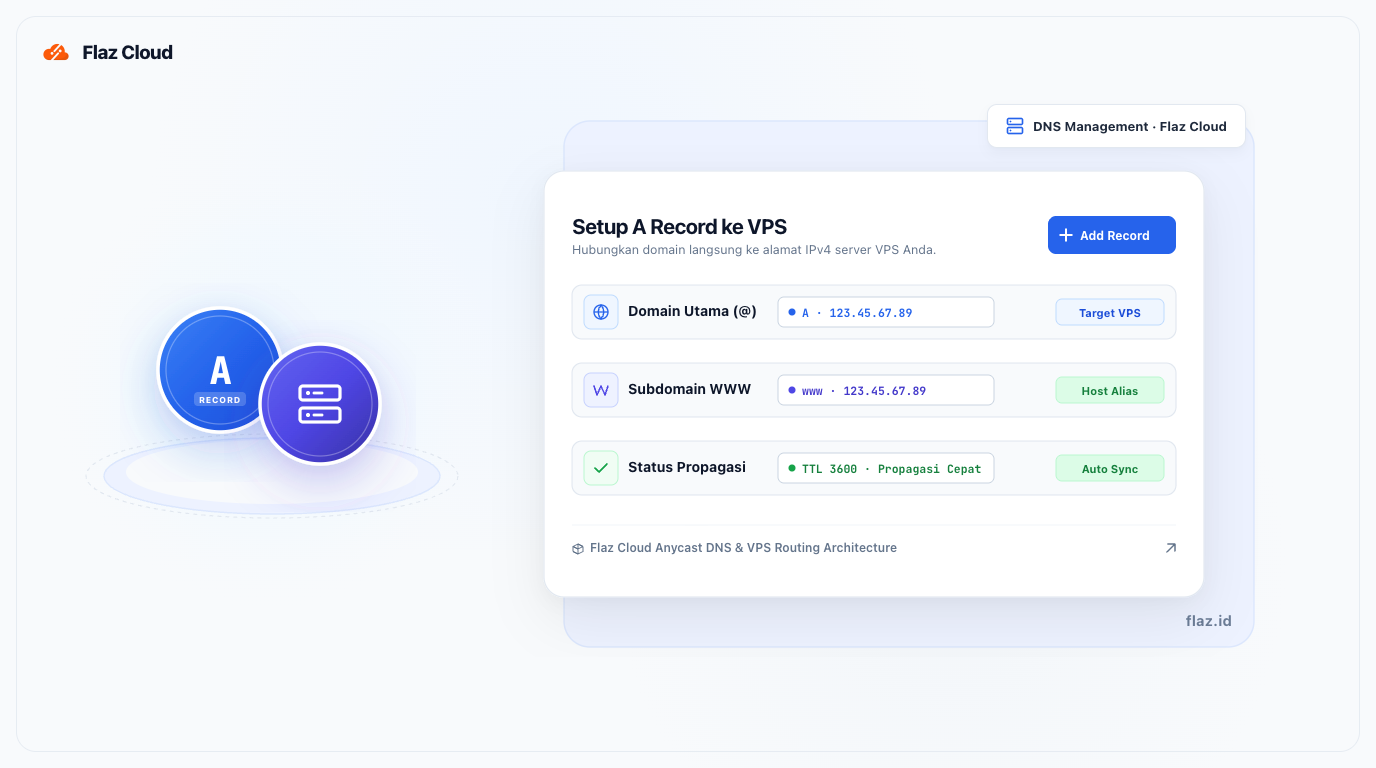
Just bought a VPS and want to connect your domain? Learn the easy way to point your domain to your server's IP address using A Record in the Flaz Cloud dashboard.
Connecting a domain to a VPS using an A Record is the most common way to make your website accessible through a domain name. Unlike using Nameserver which directs all DNS settings, using an A Record allows you to point your domain to a specific server IP address.
This process is very quick and easy to do directly through the Flaz Cloud dashboard. Follow the steps below so your domain is quickly connected to your server.
Step 1 Get Your VPS IP Address
Before setting up your domain, you must first know your server's IP address. Please login to the Flaz Cloud dashboard and select the Server menu on the left sidebar.
Click on your VPS name and look at the IP Address section. Please copy or note down the series of numbers (for example: 123.45.67.89). If you just joined, make sure your account is ready by checking How to Register a Flaz Cloud Account.
Step 2 Go to Domain Menu
After knowing the IP address, now switch to the Domain menu in the left sidebar. Click on the domain name you want to point to the VPS.
Make sure your domain is active so you can use all configuration menus. If you want to try with a new domain, please see the guide How to Register a New Domain in Flaz Cloud. Also make sure your email is correct by checking How to Verify Your Flaz Cloud Account Email for your data security.
Step 3 Open Manage DNS Menu
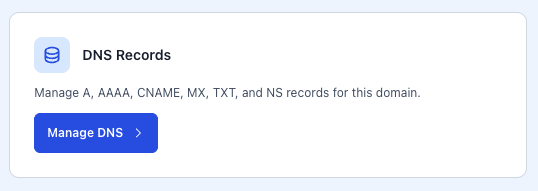
Scroll down the domain detail screen until you find the DNS Records section. In that box, click the blue button labeled Manage DNS.
This page will display a list of existing DNS records. If there was previously an A Record pointing elsewhere, you can change it or delete it first to avoid configuration conflicts.
Step 4 Add New A Record
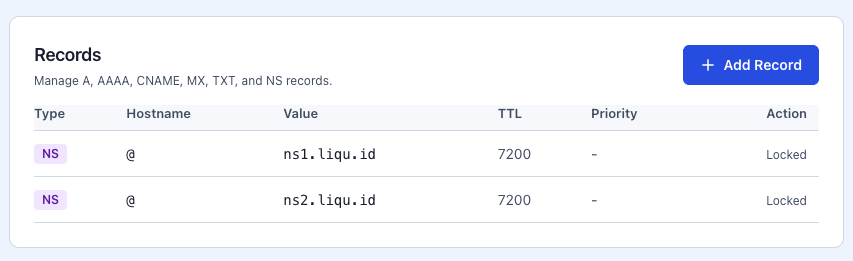
Now we will enter the VPS IP address into the domain settings. It is recommended to create two records so the website can be accessed both with and without "www".
-
Click Add Record.
-
In the Hostname field, enter the @ symbol or leave it empty to point the main domain.
-
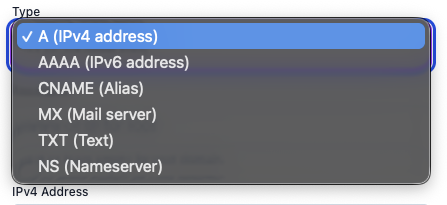
Select Type as A.
-
In the IPv4 Address field, enter the VPS IP address you copied earlier.
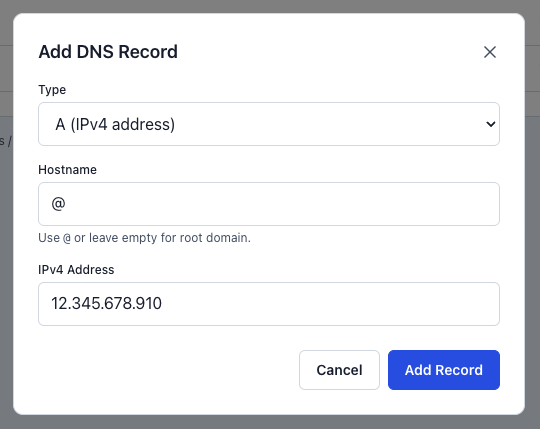
-
Click save.
Repeat the steps above once more, but in the Name field enter www so that visitors who type www.domainanda.com are also directed to the same server.
Step 5 Wait for Propagation Process
After all records are saved, you just need to wait for the DNS propagation process. Usually this process takes from a few minutes to 24 hours.
While waiting for the domain to become active, you can already start configuring your server content. Please see the guide How to Login to VPS via SSH so you can start installing applications on the VPS.
If after 24 hours the domain still hasn't pointed to your VPS, try checking again whether the IP address entered is correct. If you still experience problems, please contact the Flaz Cloud support team so we can help perform further checks on your DNS settings.
Was this article helpful?